Plot CSV, Excel & TXT Files Online
Turn a CSV, Excel or TXT file into a graph: pick the columns, choose a line, bar or scatter chart and save it as a PNG. Free, and your file stays on your device.
It also plots MATLAB, LabVIEW TDMS, JSON, Parquet and HDF5 files.
Choose a CSV, Excel or TXT file to plot
Drop it here or choose a file. Millions of rows are fine.
The sample is 1,000,000 hourly readings of made-up UK weather.
Tip: drop several files to compare them.
Your file never leaves your device. It is read and charted by your browser. Nothing is uploaded.
Or start from an example
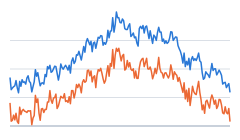 Line chartCardiff daily temperature
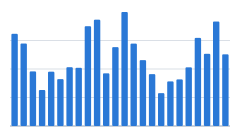 Bar chartGlasgow monthly rainfall
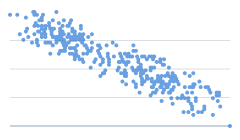 Scatter plotBelfast temperature and humidity
More to download and plot: sample CSV, Excel, MATLAB, TDMS and HDF5 files.
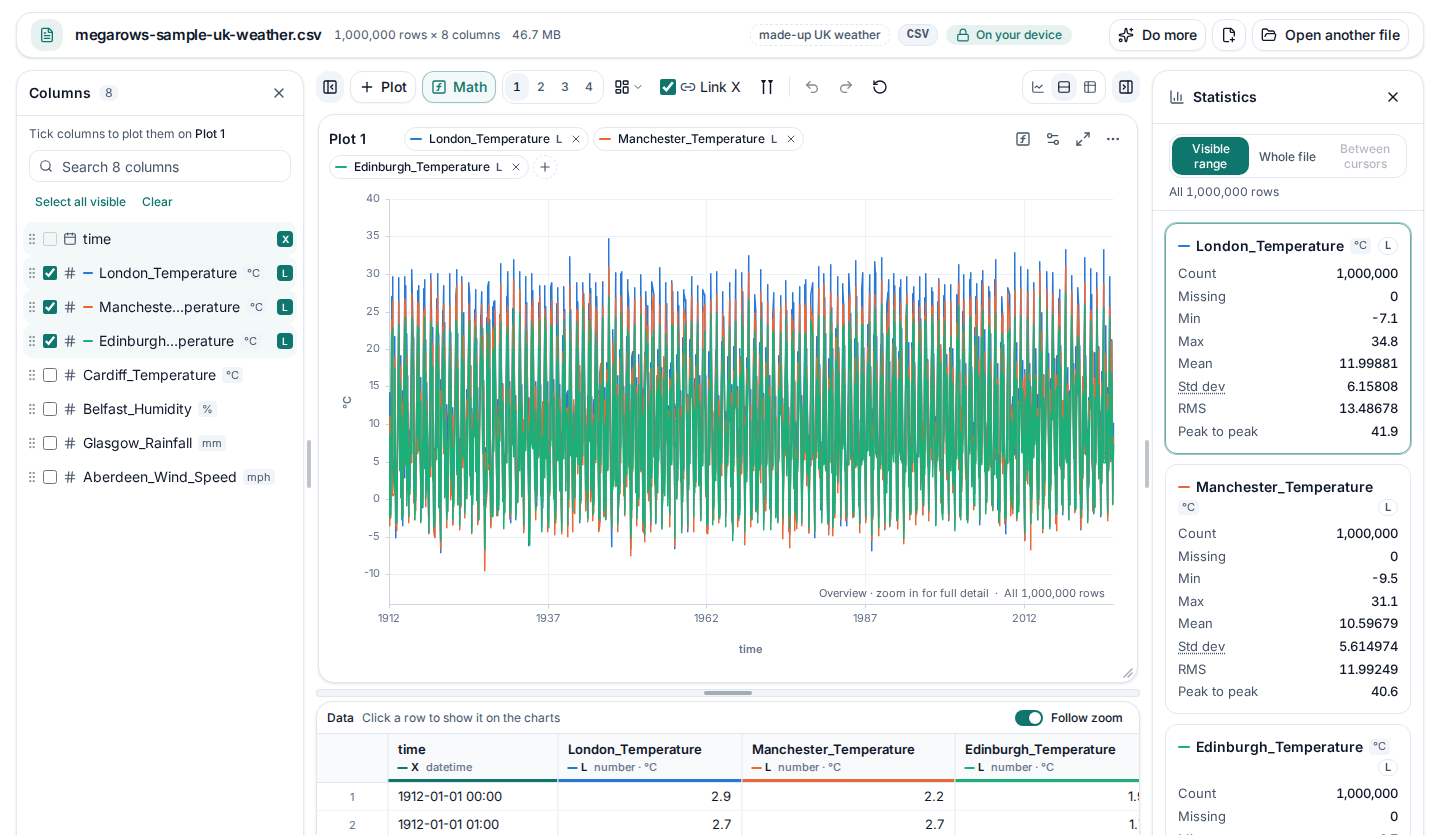
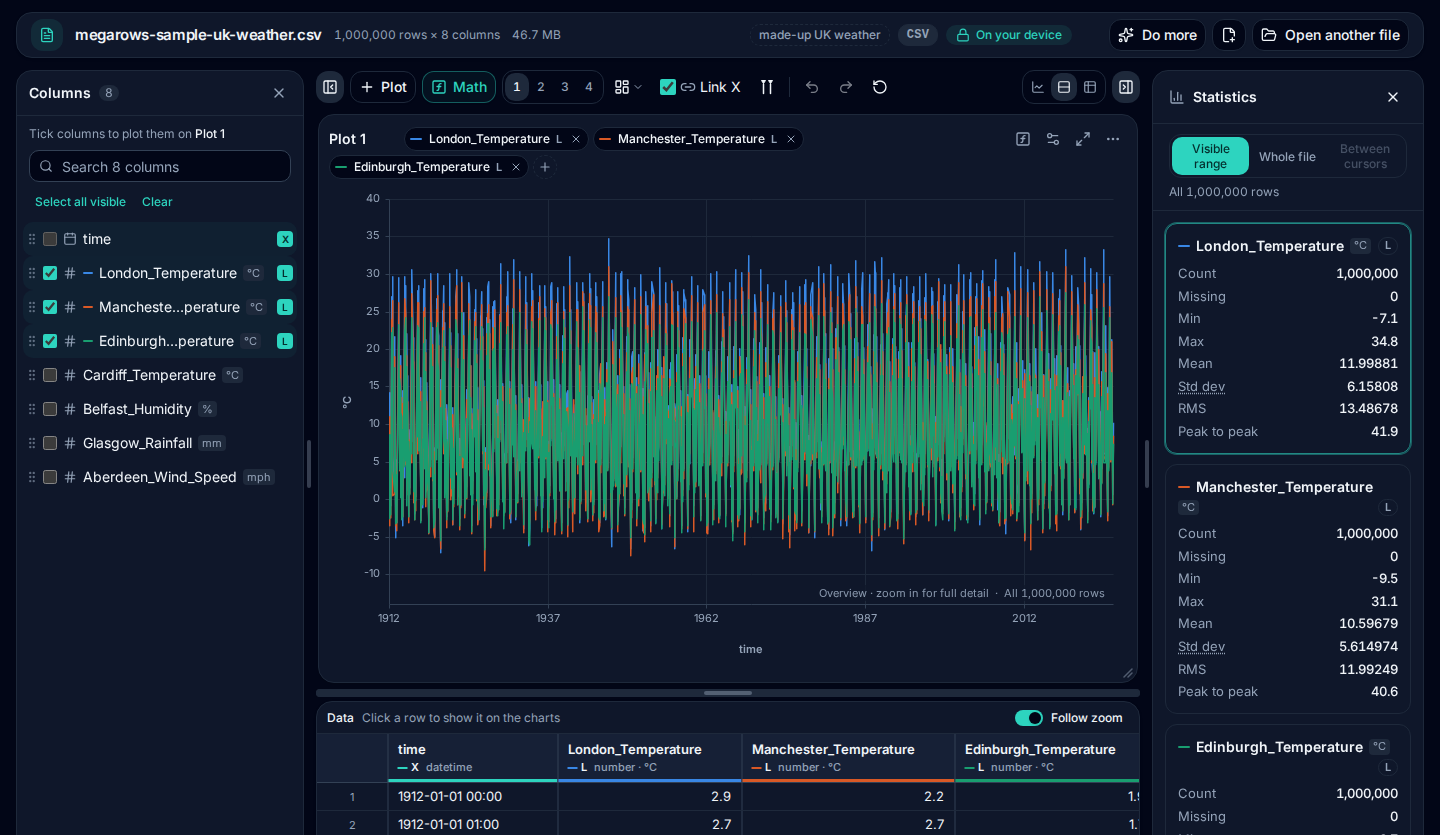
How to plot a CSV, Excel or TXT file online
- Choose your CSV, Excel or TXT file. Drop a CSV, Excel or TXT file onto the plotter above, or click “Choose a file”. JSON, MATLAB .mat, Parquet, HDF5 and LabVIEW TDMS files open the same way. A workbook opens on its first sheet with data; switch sheets (or the tables of a MATLAB, HDF5 or TDMS file) from the menu in the top bar.
- Pick the columns. The first chart appears straight away, with a time or number column on the x axis. Choose the x axis and add series from the toolbar, click a column header to plot that column alone or shift-click to add it, and move a series to the right axis to give it its own scale.
- Choose a chart type. Open the plot’s ⋯ menu and pick Line, Step, Bar, Area, Scatter, Histogram or Box plot under Chart. A file of sales or orders opens as a monthly bar chart.
- Zoom in and save a PNG. Zoom into any part of a time series at full detail with the scroll wheel, a pinch or a drag across the chart; Shift+scroll zooms the Y axis and a double-click resets. Check each column’s statistics in the side panel, and download the chart as a PNG image.
At a glance
- Input formats
- CSV, TSV, TXT and DAT (comma, semicolon, tab, pipe or space-aligned columns), Excel .xlsx and .xlsm, JSON and JSON Lines, MATLAB .mat (v4 to v7.3), Parquet, HDF5 and NetCDF-4, and NI TDMS; any of them but TDMS also compressed with gzip (.csv.gz) or inside a ZIP archive.
- First chart
- Drawn as soon as the file is read: a sorted date-time or number column becomes the x axis and the first numeric column is plotted against it.
- Chart types
- Line, step, bar, area and scatter charts and histograms, with a left and a right y axis and up to 8 series per chart, and box plots of the series side by side. Several charts side by side share a cursor and zoom together. Measurement cursors read every series at one or two moments, with Δt, 1/Δt and the min, max, mean and RMS between them; event lines, limit lines and pinned values mark the chart and go into the image.
- Summaries
- Totals, counts and averages by day, week, month, quarter or year, by product or region, per time window or value band, side by side or stacked. Sales files open as monthly bar charts.
- Big files
- A 2-million-row CSV opens in about 1 second, 10 million rows open and draw their first chart in about 3 seconds, and an Excel sheet at the 1,048,576-row maximum opens in under 3 seconds.Measured in Chrome on a recent laptop (Apple M4): a 423 MB CSV with 10,000,000 rows and 5 columns, from choosing the file to the first chart. Slower devices take longer.
- Zoom and detail
- Zoom with the scroll wheel, a pinch or a drag; Shift+scroll for the Y axis. The full detail reloads instantly and peaks and dips stay visible at every zoom level. Double-click to reset.
- Statistics
- Count, missing values, min, max, mean, median, quartiles and standard deviation for every column; distinct and most frequent values for text columns.
- Export
- Any chart as a PNG image, and the rows you are looking at as a CSV file.
- Processing
- Runs in your browser. Files are never uploaded.
- Price
- Free. No account or sign-up.
Plot time series online
Many files people plot are measurements over time: logger and test-rig exports, sensor logs, meter readings. The plotter reads the time column as time, not as text, and gives measured signals the tools engineers expect.
Times read as times
Dates and times in the common forms become a real time axis: 2025-01-31T14:00:05Z, 31/01/2025 14:00, 3/4/2025 2:15 PM, 14.03.2026 09:30:00,010 or 4-Mar-25, with fractions of a second and time zones. Whether 03/04 is the 3rd of April or the 4th of March is worked out from the whole column. Elapsed seconds and durations such as 01:02:03 work too. Zoom from years of readings down to single ones and the axis labels follow, from months to hours and minutes.
Irregular sampling and gaps
Each reading sits at its own time, so uneven steps, pauses in logging and clock changes show as they happened rather than evenly spaced. An empty cell leaves a gap in the line. A channel logged more slowly than the others, with most of its cells empty, is drawn joined up with a marker on each reading. Signals logged at different rates, and files with one row per signal sample (time, name, value), plot together, each on its own times.
Many channels
Search the channel list by name, open and close groups of channels that share a prefix, and tick what you want: up to eight series per chart, on a left and a right axis with their units. Put up to four charts in a row; with Link X zoom on, zooming one zooms them all and the cursor moves on every chart.
Cursors and statistics
Switch on one measurement cursor (M) or two (D) to read every series at a moment, or the difference between two: Δt and 1/Δt, each series’ value at both cursors, and the min, max, mean and RMS between them, worked out from every sample in between. The statistics panel gives the count, missing values, min, max, mean, standard deviation and RMS of each series for the range in view, the whole file or the span between the cursors. Copy the readout into a spreadsheet, or mark the chart with event lines, limit lines and pinned values that go into the PNG.
No file to hand? Try it with sample data plots 1,000,000 hourly readings of made-up UK weather, from 1912 to 2026, made on your device. For a spectrum of a signal channel, open FFT from CSV.
Plot multiple signals with a shared time axis
Compare signals with different units without squeezing them onto one Y scale. Stacked lanes give each series its own space, Y axis and range, with a shared time axis along the bottom. Line up temperature, humidity, wind speed and rainfall to see what changes at the same moment.
Zoom along time and every lane moves together. A shared crosshair and values tooltip help you compare readings across the lanes. Turn on C1 and C2 measurement cursors to read each series at two moments, with a separate row of values for every signal. If two series belong together, drag a series chip onto the other lane to give them a shared Y axis.
- Open your file in the plotter, or choose Try it with sample data.
- Tick the signals you want, and select your time column as the X axis.
- Click the lanes icon in the line chart’s header, or choose Stacked lanes in its ⋯ menu.
- Zoom along time to inspect the same interval across every lane.
- To group two signals, drag a series chip onto the other signal’s lane.
Pop a plot out to a second monitor
Open a plot in its own window for a second monitor, kept in step: shared zoom and cursors.
- From the menu: open the plot’s ⋯ menu and choose Pop out. The plot opens in a window of its own, the size of the plot, ready to drag to your other screen.
- By dragging: with two or more plots, drag a plot by its handle past the edge of the browser window and let go.
- Kept in step: it is the same plot, not a copy. With Link X zoom on, zooming in either window zooms both, and the measurement cursors, their readout and the keyboard shortcuts work in both windows.
- Back again: close the window, or choose Bring back, and the plot returns to its place in the grid.
Pop out works in desktop browsers, with a mouse or a trackpad; on phones and tablets used by touch the plots stay in the page. Dragging out opens the window as you let go in Chrome, Edge and Safari; in Firefox, use ⋯ → Pop out. In Chrome and Edge, Keep on top in the same menu puts one plot in a small window that stays above your other windows, other programs included.
Plot frequency data on a log X axis
A frequency response, a spectrum saved by an analyser or any measurement against frequency reads best on a log X axis, where 1 to 10 Hz gets as much room as 100 to 1,000 Hz. First make the frequency column the X: the line at the top of the column list says what the X is, such as “X: Row number · change”, and “change” lists the columns to pick from. Then open Plot settings, go to Axes and tick “Log scale, X”; while the X is still the row number, the same box lists the number columns, frequency columns first, and a pick does both in one step. Rows with a frequency at or below 0, such as a 0 Hz (DC) row, can’t sit on a log axis: they are left out of the chart, and a note in its corner says how many. Our guide shows how to plot frequency data from a CSV on a log X axis, with an example file to try.
What people use it for
Test-rig and data-logger exports
Long measurement logs as CSV, TXT or DAT, including comment lines at the top, units rows and space-aligned columns. Exports that list every signal in one column are split into channels automatically. Zoom from the whole run down to a single event.
Sales and finance exports from Excel
Plot revenue or units over time straight from an .xlsx file. Dates, percentages and the saved results of formulas come through as values, and report titles above the header are skipped.
Smart meter and IoT sensor logs
Half-hourly meter readings or sensor events as CSV or JSON Lines, on a real time axis, with clock changes and time zones handled.
Fitness and GPS exports
Heart rate, pace and elevation per second from a workout export, with elapsed times such as 01:02:03 as the x axis.
Checking a CSV before a database import
See which columns are numbers, dates or text, how many values are missing and whether the minimum and maximum make sense, before you load the file anywhere.
Comparing two runs
Choose or drop both files at once and plot them on one chart, lined up at their start if they began at different times, with the differences worked out side by side in tables. Our guide shows how to plot multiple CSV files on one graph.
Vibration and frequency analysis
Turn an accelerometer or microphone channel into an FFT spectrum or a power spectral density with a Grms readout, and filter it into new channels. Make a spectrogram to see how frequency changes over time, or take the FRF and coherence of an excitation and a response to compare input and output in the frequency domain.
Two pages lead straight to a task: the large CSV viewer opens your file with the data table first, to read through millions of rows, and FFT from CSV takes a signal column straight to its spectrum.
The maths is checked: every calculation in the Math dialog was run through MegaRows and through NumPy and SciPy on the same file, 526 checks, all passing. How we check our maths lists every one.
Supported file formats
The plotter recognises the format from the file’s content, so a CSV saved with a .txt name opens just as well. For .mat files, see the MAT file viewer page.
HDF5 and NetCDF files
An .h5, .hdf5 or NetCDF-4 .nc file opens with its first table plotted. “Variables” in the file line shows every group and dataset with its type, shape, first values and attributes; tick the datasets to plot, from any group. Datasets of a group with the same length share a time axis, 2-D datasets become columns and record arrays a table, with units, dates and times from the attributes. Compressed files open too: a .csv.gz unpacks on your device as it is read, and a ZIP archive with several files lets you tick up to 8 of them, each opening as a file of its own.
| Format | Files | What works | Limits |
|---|---|---|---|
| Delimited text | .csv, .tsv, .txt, .dat | Comma, semicolon, tab, pipe or space-aligned columns. Finds the header, skips comment lines (#, //) and metadata above it, reads units rows, decimal commas and UTF-8, UTF-16 or Windows-1252 text. | Any size |
| Excel workbook | .xlsx, .xlsm | Every sheet, hidden ones included, from the sheet menu. Dates, times, percentages, booleans and the saved results of formulas. Finds the header below title rows. | Up to Excel’s 1,048,576 rows per sheet. Macros never run. |
| JSON | .json, .jsonl, .ndjson | Arrays of objects (nested fields become columns such as meta.sensor), arrays of rows, { "data": [...] } wrappers and JSON Lines. | JSON Lines and top-level arrays: any size. Other JSON up to 256 MB. |
| MATLAB | .mat | MATLAB v4, v6, v7 and v7.3 files. Finds your signals automatically: Simulink- and dSPACE-style logs, structs, matrices with channel names and time vectors, each group in its own table. | Files of several GB, with their dates and times, durations, text and categories. containers.Map, dictionary and your own classes not yet. |
| Parquet | .parquet | Numbers, dates and times (time zones too), text, booleans and decimals, in any common compression. Fields of a struct become columns such as station.name. The schema and each column’s statistics show as soon as you choose the file. | Large files open fast: big text columns are read when you use them. Lists and maps not yet. |
| HDF5 and NetCDF-4 | .h5, .hdf5, .he5, .nc | Groups and datasets in a tree, with each one’s type, shape, first values and attributes: tick the ones to plot. Datasets of a group with the same length open as one table against their time axis; 2-D datasets become columns and record arrays a table, with units and dates and times from the attributes. | Datasets of three or more dimensions, and NetCDF 3 (classic) files, not yet. |
| NI TDMS | .tdms | Files from LabVIEW, DIAdem and DAQmx loggers: every group’s channels open as tables against their waveform time (or a time channel), with units, scaling and every property in a tree. Interleaved, big-endian and DAQmx files too, and a file a logger is still writing. | Files of several GB: values are read when you plot or export them. Complex numbers not yet. |
| Compressed files | .gz, .zip | A file compressed with gzip (.csv.gz, .tsv.gz, .json.gz) opens like the file inside, unpacked on your device as it is read, with both sizes shown. A ZIP archive with one data file opens it; with several, tick the ones you want, up to 8, and each opens as a file of its own. | MATLAB, HDF5, Parquet and Excel files inside: up to 1 GB unpacked. Password-protected archives not supported. |
| Old Excel | .xls | Not supported. Open the file in Excel and save it as .xlsx. | A clear message tells you what to do. |
| Password-protected workbooks | .xlsx | Not supported. Remove the password in Excel first. | |
| OpenDocument | .ods | Not yet. Save the file as .xlsx or CSV. | |
| MF4 (ASAM MDF) | .mf4 | Coming later. Export to CSV for now. |
Built for big files
Spreadsheets slow down long before a million rows, and Excel stops at 1,048,576. The plotter is made for files far bigger than that and opens them in seconds, right in your browser. In our tests in Chrome on a recent laptop:
- a 143 MB CSV with 2,000,000 rows and 9 columns opened in about 1 second;
- a 423 MB CSV with 10,000,000 rows and 5 columns opened and drew its first chart in about 3 seconds;
- an Excel workbook at the maximum of 1,048,576 rows (6 columns, 49 MB) opened in under 3 seconds;
- a JSON Lines file with 100,000 events (12 MB) opened in about 0.3 seconds.
A one-sample spike in 10 million rows is still visible in the overview, and zooming in reloads the exact values of the visible range instantly. The statistics, the cursors’ readout, the maths and the exports always use every row, never just what is drawn. Slower machines take longer, and very large files need enough free memory.
How these figures were measured (the file, the machine, the browser, cold and warm opens, repeats) and the known limits: how we measure speed.
Private by design: nothing is uploaded
The plotter runs entirely in your browser, on your device: the file and its name are never sent anywhere, which you can check in the Network tab of your browser’s developer tools while a file opens. That makes it safe for test data, customer exports and financial figures that must stay on your computer. Read the privacy statement for details.
Frequently asked questions
How do I plot a CSV file?
Drop the file onto the plotter at the top of this page or click “Choose a file”. The first chart appears as soon as the file is read, with a time or number column on the x axis and the first numeric column as a line. Pick other columns from the toolbar or by clicking the column headers. There is nothing to install and the file is not uploaded.
How can I plot Excel data online without uploading it?
Open the .xlsx or .xlsm file here and your browser reads it on your own device. The plotter opens the first sheet with data and finds the header row, even below a report title; switch sheets from the menu in the top bar. Dates, times, percentages and the saved results of formulas are read as values. Old .xls files need to be saved as .xlsx in Excel first.
Can I plot more than 1 million rows?
Yes. Files far beyond Excel’s limit of 1,048,576 rows open in seconds: in our tests in Chrome, a 2-million-row CSV took about 1 second, and a 10-million-row CSV opened and drew its first chart in about 3 seconds (measured in Chrome on a recent laptop, with a 423 MB CSV of 10,000,000 rows and 5 columns). Peaks and dips stay visible in the overview, and when you zoom in the full detail reloads instantly.
Can I plot two y axes (a dual y axis chart)?
Yes. Move any series to the right axis with the L / R button in the toolbar or from the column header menu, and it gets its own scale. That is how you show temperature and pressure, or units and revenue, on one chart. Up to eight series fit on the two axes.
Can I plot multiple Y axes on one time axis?
Yes. Use stacked lanes to give each signal its own Y axis and range, with one shared time axis below. The signals sit in separate lanes, so this is not an overlaid dual-axis chart. Zoom in time to explore the lanes together.
Why does my X axis show row numbers?
Because no column is the X yet, so each row is plotted at its position in the file, evenly spaced. The line at the top of the column list then says “X: Row number”; press “change” next to it and pick your time, date or number column. When a column would make a better X, such as a sorted frequency column, the plotter can suggest it under that line, and Use sets it.
How do I plot against a frequency column in Hz?
Make the frequency column the X: press “change” in the column list’s X line and pick it, or choose it as the X axis column in Plot settings → Axes. Then tick “Log scale, X” in the same Axes tab, and each decade, such as 1 to 10 Hz or 100 to 1,000 Hz, gets the same width.
Why are zero or negative X values missing on a log axis?
A log axis has no place for 0 or negative numbers, since the logarithm of 0 is minus infinity. With “Log scale, X” ticked, rows whose X is at or below 0, such as the 0 Hz row of a spectrum, are left out of the chart and a note in its corner counts them. They stay in the file and the data table, and unticking the box draws every point again.
Does my file get uploaded?
No. The file is read and charted by your browser on your own device, and neither the file nor its name is sent anywhere. You can check this in the Network tab of your browser’s developer tools while a file loads.
Can I calculate new channels, filters or spectra?
Yes. The Math button turns formulas (for example the magnitude of three axes), low-pass, high-pass and band-pass filters, moving averages and integrals into new channels you can plot like any column. It also opens FFT and PSD plots with a Grms readout, transfer functions with coherence, shock response spectra, rainflow cycle tables and statistics. Everything is calculated on your device, your math channels come back when you open the file again, and our results are checked against SciPy.
Which chart types are supported?
Line, step, bar, area and scatter charts, and histograms, all zoomable with the scroll wheel, a pinch or a drag (Shift+scroll for the Y axis), plus a crosshair with live values and PNG export. Any chart can also summarise its rows: sales by month, quarter or year, totals by product or region (side by side or stacked), the average of a signal every 10 seconds, or the time spent in each speed band. A file of sales or orders opens as a monthly bar chart, and the summary can be downloaded as a CSV. Box plots show the median, quartiles, whiskers and outliers of each series side by side, over every row, with their numbers as a CSV.
Can I compare two files on one chart?
Yes. Choose or drop several files at once, or use “Add file”, and plot channels from each of them together: run A against run B, before and after a change, or this year’s sales against last year’s. Runs that started at different times can be lined up at their start, and the files can be compared side by side in tables with the differences worked out for you. Up to eight files can be open together, and your plots come back when you open the same files again.
My CSV has one row per signal sample (time, name, value): can I plot it?
Yes. Many data loggers and historians export every signal in one column, with a time, the signal’s name and its value on each row. The plotter recognises these files and splits them into one channel per signal as they open, each with its own timestamps, so signals recorded at different rates plot together correctly, even with thousands of signals. Search and tick the signals you want, zoom, compare them, read their statistics or calculate across them. “Keep as rows” shows the file exactly as it is, and “Download as wide CSV” puts the signals side by side, one column each, ready for Excel.
The plotter is stuck or looks wrong: how do I start fresh?
Open the Reset page at megarows.com/reset and choose “Reset now”. The layouts, math channels and settings this browser remembers go back to the defaults; your light or dark theme is kept. Your files are never stored, so nothing in them is lost. In the plotter, “Reset everything to defaults…” at the end of “Do more” does the same. And if a saved layout ever stops the page, the plotter opens that file with the default layout next time and offers to try the saved one again.
Which file formats can I open?
CSV, TSV, TXT and DAT files with any common separator (comma, semicolon, tab, pipe or space-aligned columns), Excel workbooks (.xlsx and .xlsm), JSON or JSON Lines, MATLAB .mat files from v4 to v7.3, including Simulink- and dSPACE-style logs, Parquet files, HDF5 and NetCDF-4 files, and NI TDMS files from LabVIEW, DIAdem and DAQmx loggers; any of them but TDMS also compressed with gzip (.csv.gz) or inside a ZIP archive. The format is recognised from the file’s content, not only its name. MF4 measurement files are planned for later.
Can I plot an HDF5 or NetCDF file online?
Yes. Choose an .h5, .hdf5 or NetCDF-4 .nc file and the first table is plotted; “Variables” shows every group and dataset with its type, shape, first values and attributes, and a tick plots a dataset. Datasets of a group that have the same length open as one table against their time axis (a dimension scale, a dataset named like a time, or dates and times from units such as “hours since 2026-01-01”); 2-D datasets become columns, named from a dimension or an attribute when the file has them, and record arrays a table, with units from the units attribute. Packed values are unpacked and fill values left empty. Datasets of three or more dimensions and NetCDF 3 (classic) files can’t be plotted yet. The file is read on your device and never uploaded.
Can I open a .csv.gz or a ZIP file without extracting it?
Yes. A file compressed with gzip (.csv.gz, .tsv.gz, .json.gz and the like) opens like the file inside: it is unpacked on your device as it is read, and the file line shows both sizes. A ZIP archive with one data file opens it straight away; with several, a short list shows each file with its type and size: tick the ones you want, up to 8 at once, and each opens as a file of its own, ready to compare on one plot. “Add file” opens more next to them. Password-protected archives can’t be opened; extract them first.
Why won’t my .xls file open?
Files from Excel 97–2003 use an old binary format that MegaRows does not read. Open the file in Excel or LibreOffice, choose Save As → Excel Workbook (.xlsx), and open the new file here. Password-protected workbooks cannot be opened either, so remove the password in Excel first.
Related tools and guides
- Large CSV viewerOpen a CSV with millions of rows in your browser: scroll every row, see each column’s type and statistics, chart any column. Works today.
- MATLAB .mat file viewerOpen v4 to v7.3 .mat files without MATLAB and plot any signal. Works today.
- Parquet viewerOpen large .parquet files, see the schema at once and plot millions of rows, without Python. Works today.
- TDMS viewerOpen .tdms files from LabVIEW, DIAdem and DAQmx loggers: every group, channel and property, each channel plotted against its time. Works today.
- HDF5 viewerOpen .h5, .hdf5 and NetCDF-4 .nc files: every group, dataset and attribute, each group’s datasets plotted against their time. Works today.
- MAT to CSVConvert the signals of a .mat file, v4 to v7.3, to a CSV for Excel or Python, without MATLAB. Works today.
- Parquet to CSVConvert a .parquet file to CSV in your browser, with the columns you pick. Works today.
- TDMS to CSVConvert the channels of a .tdms file to CSV, a group at a time, with its time column, without LabVIEW or Excel add-ins. Works today.
- HDF5 to CSVConvert the datasets of an .h5 or NetCDF-4 file to CSV, a table at a time, with its time column, without Python. Works today.
- Excel to CSVConvert any sheet of an .xlsx or .xlsm workbook to CSV, with the saved results of formulas, real dates and 15 significant digits. Works today.
- JSON to CSVConvert JSON and JSON Lines files to CSV: nested fields become columns named by their path, arrays stay as JSON text. Works today.
- CSV to MATConvert a CSV, Excel, JSON or Parquet file to a MATLAB .mat file: a field per column, with names and units, every row. Works today.
- Merge CSV filesAppend many CSV files into one, even with different columns or separators. Works today.
- Split CSV filesSplit a CSV too big for Excel into parts of 1,000,000 rows, parts of a size you choose, or one file per value of a column. Works today.
- CSV row counterCount the lines in a CSV, TSV or TXT file of any size. Works today.
- CSV statisticsCount, missing values, min, max, mean, standard deviation, RMS and peak to peak of each number column, for the whole file or the rows you zoom into. Works today.
- CSV histogramA histogram of any number column, with automatic bins or 10 to 200 of them, and each bin’s count as a table. Works today.
- CSV too large for Excel?Open every row of a CSV beyond Excel’s 1,048,576-row limit, or work around the limit in six other ways.
- FFT and PSD from a CSVTurn a signal column into an FFT spectrum or a PSD with Grms, with results checked against SciPy. Works today.
- PSD calculatorTurn a vibration column into a power spectral density (Welch) in g²/Hz, with the Grms of any band and a dB view. Works today.
- Spectrogram from CSVSee how the frequencies of a measured signal change over time, as a heat map in dB, with the window and range you choose. Works today.
- FRF and coherencePick an input and an output column and get the frequency response (H1, H2, magnitude and phase) and their coherence. Works today.
- The MegaRows toolboxWhat works today and what is coming next, and why nothing is ever uploaded.
Coming soon to MegaRows: CSV to Excel and PDF reports · Compare CSV versions.
MegaRows processes files locally in your browser. Nothing is uploaded, not even the file name.