Spectrogram from CSV (time-frequency plot)
The spectrogram of any CSV column, in your browser. Nothing is uploaded.
Open a CSV to see its spectrogram
Drop it here or choose a file. The spectrogram settings open as soon as it is read.
The sample: a made-up pressure signal sweeping from 5 to 50 Hz over a minute, with noise.
Tip: drop several files to compare them.
Your file never leaves your device. It is read and charted by your browser. Nothing is uploaded.
Opens on the spectrogram settings, with these defaults
Every one of them can be changed in the dialog before you open the plot:
- Channel
- The plotted channel; the sample rate from the time column (type it in when there is none).
- Slices
- Tukey (0.25) window; segments of 1,024 samples (fewer for a short file); 50 % overlap; each segment’s mean removed.
- Heat map
- Density (unit²/Hz), one-sided; colours in dB, 80 dB down from the strongest value; every frequency from 0 Hz to half the sample rate.
At a glance
- What it shows
- The power spectral density of short, overlapping slices of the signal, side by side: time across, frequency up, colour in dB.
- Window
- Tukey (0.25) by default; Hann, Hamming, Blackman, flat top and rectangular too.
- Segment length
- 1,024 samples by default (fewer for a short file). Longer segments: finer frequency steps, coarser time steps.
- Overlap
- 50 % by default, anything from 0 to 95 %. More overlap: more time steps, the same detail.
- Colour scale
- dB (reference 1 unit²/Hz), from the strongest value down by the colour range: 80 dB by default, 10 to 200 dB.
- Frequency range
- Every frequency from 0 Hz to half the sample rate, or a range you type, such as 0 to 60 Hz.
- Files
- Measured data: CSV, TSV, TXT, Excel, JSON, MATLAB .mat, Parquet, HDF5 and LabVIEW TDMS files with a time column. Not audio files.
- Accuracy
- Checked against SciPy by our own tests: 30 checks of the spectrogram, all passing.
- Processing
- Calculated in your browser. Your file is never uploaded.
- Price
- Free. No account or sign-up.
How to make a spectrogram from a CSV file
- Open your file. Choose a CSV, TSV, TXT, Excel, JSON, MATLAB, Parquet, HDF5 or LabVIEW TDMS file with a time column and one or more measured signals, or drop it on the tool at the top of this page. No file to hand? Click “Try a sample sweep”.
- Check the settings. The spectrogram settings open as soon as the file is read, on the plotted channel, with the sample rate from the time column. Pick the window, segment length and overlap, how many dB of colour to show, and a frequency range if you only need part of it.
- Open the heat map. Click “Open plot”. Time runs across, frequency up, and the colour is the power at each time and frequency in dB. Save it as an image from the plot’s menu.
A worked example you can check
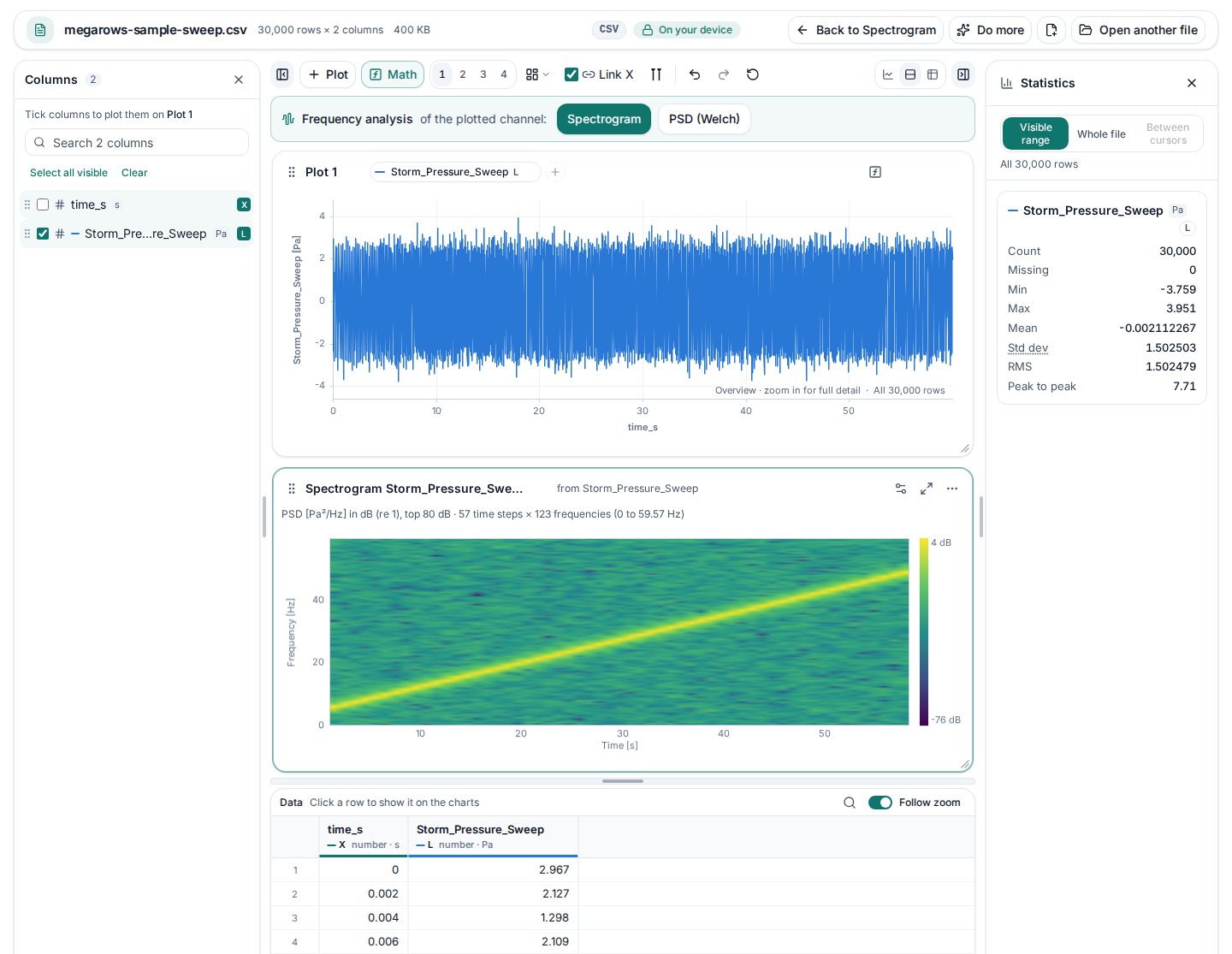
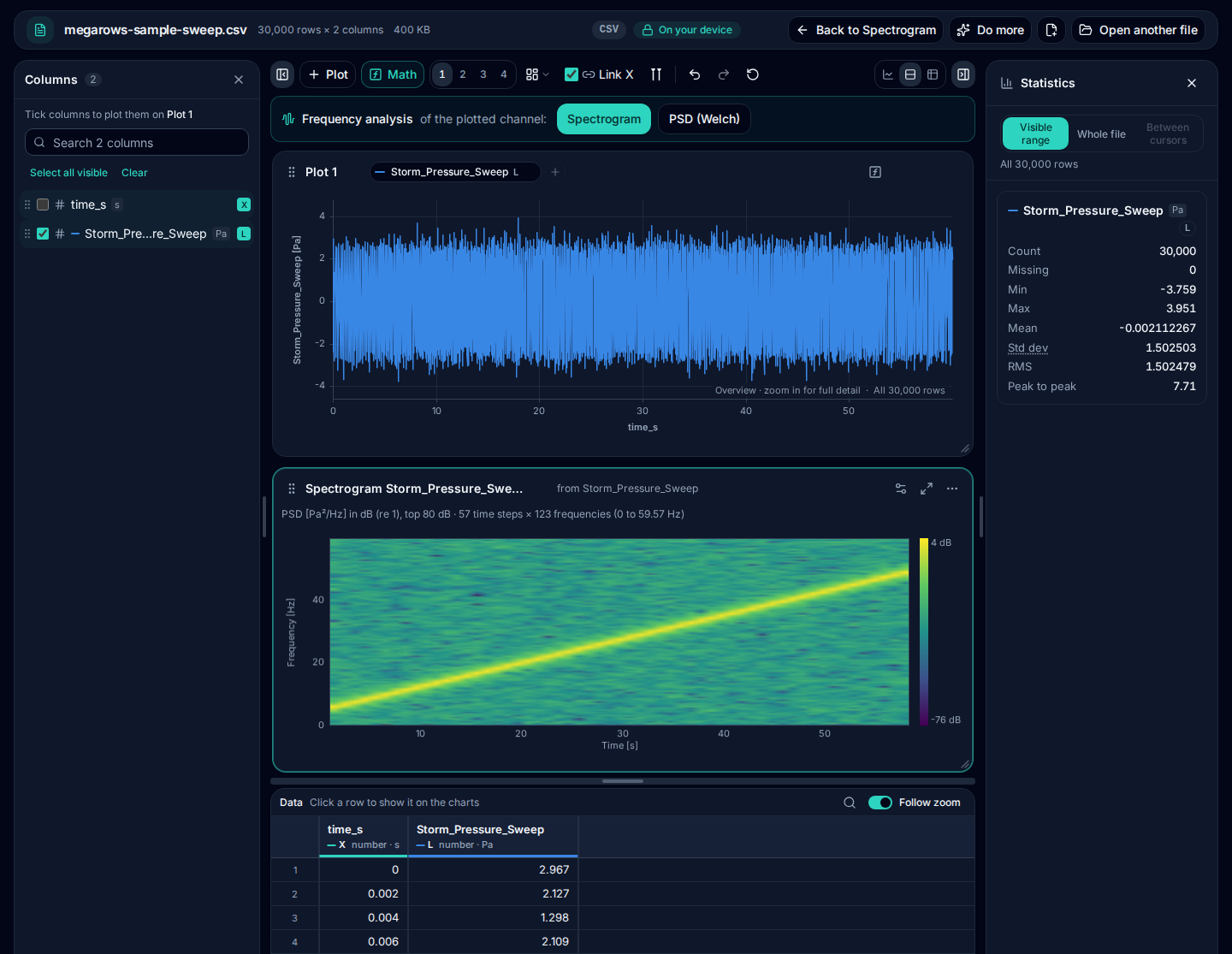
“Try a sample sweep” opens a made-up file of 30,000 pressure readings taken 500 times a second (60 seconds). Its Storm_Pressure_Sweep column, in Pa, holds a sweep from 5 Hz to 50 Hz over the minute (amplitude 2 Pa) with random noise (standard deviation 0.5 Pa). Click Open plot without changing anything, and this is what you should get:
| Channel | Storm_Pressure_Sweep [Pa], sample rate 500 Hz from time_s |
|---|---|
| Window | Tukey (0.25) |
| Segment length | 1,024 samples (2.048 s), frequency step 0.488 Hz |
| Overlap | 50 % (512 samples): a slice every 1.024 s |
| Colour range | 80 dB |
| Frequency range | Empty: 0 to 250 Hz |
| Heat map | 57 time steps × 513 frequencies (0 to 250 Hz) |
|---|---|
| Strongest value | 4.5 dB (re 1 Pa²/Hz), the top of the colour bar |
| The middle slice | At 29.70 s, loudest at 27.34 Hz (the sweep is at 27.27 Hz then) |
| Frequency range 0–60 Hz | 57 time steps × 123 frequencies (0 to 59.57 Hz) |
The sweep shows as a bright line that climbs from 5 Hz at the left to 50 Hz at the right, over the dark floor of the noise. Above 50 Hz there is only noise, so typing a frequency range of 0 to 60 Hz fills the heat map with the sweep. Each slice’s loudest frequency follows the sweep to within a frequency step, although the sweep moves 1.5 Hz during one 2-second segment.
The same in Python
With the sample file downloaded, these lines give SciPy’s answer for the same settings (skiprows=[1] skips the units row):
import numpy as np, pandas as pd
from scipy import signal

x = pd.read_csv("megarows-sample-sweep.csv", skiprows=[1])["Storm_Pressure_Sweep"].to_numpy()
f, t, S = signal.spectrogram(x, fs=500, window=("tukey", 0.25), nperseg=1024, noverlap=512)
print(f"{len(t)} time steps x {len(f)} frequencies")
j = 28
print(f"slice at {t[j]:.2f} s: peak at {f[np.argmax(S[:, j])]:.2f} Hz")
print(f"strongest {10 * np.log10(S.max()):.1f} dB")
They print:
57 time steps x 513 frequencies
slice at 29.70 s: peak at 27.34 Hz
strongest 4.5 dB
We ran them on 8 October 2026 with NumPy 2.1.3, SciPy 1.14.1, pandas 2.2.3 and Python 3.12. A test runs the same calculation through MegaRows on every change to the site and checks that every slice’s loudest frequency is SciPy’s and that its values match SciPy’s to about 12 significant digits. Download the sample file (CSV, 400 KB).
Reading a spectrogram
- A horizontal line is a steady tone: a fan, a hum, a resonance that keeps ringing.
- A slanted line is a frequency that changes: a sweep, a machine speeding up, the sample above.
- A vertical stripe is a short event with power at many frequencies at once: a knock, an impact, a gust.
- The colour is the power spectral density in dB: every 10 dB is ten times the power.
The settings, and what they change
Window, segment length and overlap
The signal is cut into segments of the chosen length, each tapered by the window and turned into a PSD: one column of the heat map. A longer segment gives finer frequency steps (the sample rate divided by the segment length) but coarser time steps; a shorter one the opposite. The overlap sets how far apart the slices are: at 50 % a new one starts every half segment. Tukey (0.25), SciPy’s default for spectrograms, keeps most of each segment at full weight; Hann leaks less between nearby frequencies.
Colour scale in dB
The colours run from the strongest value down by the colour range, 80 dB unless you change it, with the scale beside the heat map. A smaller range brings out the strongest parts; a larger one shows quieter detail.
The values are a power spectral density in the channel’s unit squared per hertz, and the colours 10·log10 of it, with 1 unit²/Hz as 0 dB: a signal in Pa gives Pa²/Hz, in g gives g²/Hz. Give each column its unit in a units row under the header, as the sample does.
Frequency range
Empty, the heat map shows every frequency from 0 Hz to half the sample rate. Type a range, such as 0 to 60 Hz, to keep only those frequencies: the heat map uses its full height for them.
For measured data, not audio
This tool opens data files with a time column and signals saved as numbers: CSV, TSV and TXT, Excel workbooks, JSON, MATLAB .mat, Parquet, HDF5 and LabVIEW TDMS files, from data loggers, test rigs, sensors and simulations. It does not open WAV, MP3 or other sound files. The sample rate comes from the time column; without one, you type it in. It works on files with millions of rows.
Sampling and gaps
The spectrogram assumes evenly spaced samples: each row is one sample, one step of the sample rate after the one before. Before you read the frequency axis, check the line under the X axis in the settings: it gives the sample rate, or says that the steps are uneven.
- Sample rate. It is 1 ÷ the median step of the time column, so a few late or early rows do not change it.
- Uneven steps. When any step is more than 1 % away from the median, the line says what share of the steps differ, how many gaps there are and which sample rate the results assume. Nothing is resampled: each row stays one sample, as if the steps were even.
- Gaps. A step longer than 1.5 times the median counts as a gap. The rows on either side are joined, so after a gap the heat map’s time axis, in seconds from the first row at the assumed rate, runs behind the clock.
- Empty cells. A missing value in the signal is filled with a straight line between its neighbours, and a missing first or last value takes the nearest one, before the spectrogram is calculated.
- Duplicate times. Rows with the same time stay separate samples, and the line counts the steps that do not go forward. When most steps repeat or go back, there is no sample rate to read, and the line says so.
- Time units. Dates and times, and durations such as 00:01:30, count in seconds. A number column counts as seconds unless its unit says ms, µs, ns, min or h: give it its unit in a units row under the header, as the sample does.
For exact frequencies from a file logged unevenly or with gaps, resample it to one fixed rate first, as the settings suggest.
Checked against SciPy
30 checks of the spectrogram, all passing. Our own tests run it with every window and several segment lengths, overlaps and a frequency range through MegaRows and through SciPy’s spectrogram on the same file, and compare every value: the largest difference was 1.1 × 10⁻¹⁵ of the size of the result. See every check.
Private by design: nothing is uploaded
Measurements are often confidential. This tool reads your file and calculates the spectrogram in your browser, so the file and its name never leave your device; you can check it in the Network tab of your browser’s developer tools.
More for measured signals
- FFT from CSVThe amplitude spectrum or the PSD of a column (you choose which first), with a table of its peaks.
- PSD calculatorPower spectral density (Welch) in g²/Hz, with the Grms of any band and of each peak.
- FRF and coherenceHow an output responds to an input: H1 and H2, phase and coherence.
- How we check our mathsEvery calculation checked against NumPy and SciPy by our own tests.
- CSV plotterPlot the signals themselves, zoom in and read the statistics.
Frequently asked questions
How do I make a spectrogram from a CSV file?
Open the CSV in the tool at the top of this page. The spectrogram settings open on the plotted channel, with the sample rate from the time column; click “Open plot”. The heat map shows time across, frequency up and the power in colour.
Can I make a spectrogram of an audio file?
Not of a WAV or MP3 file: this tool opens measured data saved as numbers, such as CSV, Excel, MATLAB, Parquet and LabVIEW TDMS files from data loggers, test rigs and sensors. A sound recording saved as a column of numbers with its time, or its sample rate, works like any other signal.
Which segment length should I use?
It trades time against frequency detail. A segment of 1,024 samples at 500 readings a second lasts about 2 seconds and has frequency steps of 0.49 Hz. Halve it to follow fast changes more closely, double it to tell close frequencies apart.
What does the colour range do?
The colours run from the strongest value in the spectrogram down by that many dB: 80 dB by default. Anything quieter is dark. Lower it, to 40 or 60 dB, to bring out the strongest parts; raise it to see the quiet ones.
How long a signal can I use?
Files with millions of rows work. The heat map holds up to 16 million values (time steps × frequencies); for a longer signal the dialog asks for a longer segment or less overlap. A frequency range keeps only the part you need.
Is my data uploaded?
No. The file is read and the spectrogram is calculated by your browser, on your own device. Neither the file nor its name is sent anywhere; you can check it in the Network tab of your browser’s developer tools.
Related tools and guides
- CSV plotterOpen a CSV, Excel, TXT, JSON, MATLAB, Parquet, HDF5 or LabVIEW TDMS file with millions of rows and plot it in several linked charts, with zoom and statistics. Works today.
- Large CSV viewerOpen a CSV with millions of rows in your browser: scroll every row, see each column’s type and statistics, chart any column. Works today.
- MATLAB .mat file viewerOpen v4 to v7.3 .mat files without MATLAB and plot any signal. Works today.
- Parquet viewerOpen large .parquet files, see the schema at once and plot millions of rows, without Python. Works today.
- TDMS viewerOpen .tdms files from LabVIEW, DIAdem and DAQmx loggers: every group, channel and property, each channel plotted against its time. Works today.
- HDF5 viewerOpen .h5, .hdf5 and NetCDF-4 .nc files: every group, dataset and attribute, each group’s datasets plotted against their time. Works today.
- MAT to CSVConvert the signals of a .mat file, v4 to v7.3, to a CSV for Excel or Python, without MATLAB. Works today.
- Parquet to CSVConvert a .parquet file to CSV in your browser, with the columns you pick. Works today.
- TDMS to CSVConvert the channels of a .tdms file to CSV, a group at a time, with its time column, without LabVIEW or Excel add-ins. Works today.
- HDF5 to CSVConvert the datasets of an .h5 or NetCDF-4 file to CSV, a table at a time, with its time column, without Python. Works today.
- Excel to CSVConvert any sheet of an .xlsx or .xlsm workbook to CSV, with the saved results of formulas, real dates and 15 significant digits. Works today.
- JSON to CSVConvert JSON and JSON Lines files to CSV: nested fields become columns named by their path, arrays stay as JSON text. Works today.
- CSV to MATConvert a CSV, Excel, JSON or Parquet file to a MATLAB .mat file: a field per column, with names and units, every row. Works today.
- Merge CSV filesAppend many CSV files into one, even with different columns or separators. Works today.
- Split CSV filesSplit a CSV too big for Excel into parts of 1,000,000 rows, parts of a size you choose, or one file per value of a column. Works today.
- CSV row counterCount the lines in a CSV, TSV or TXT file of any size. Works today.
- CSV statisticsCount, missing values, min, max, mean, standard deviation, RMS and peak to peak of each number column, for the whole file or the rows you zoom into. Works today.
- CSV histogramA histogram of any number column, with automatic bins or 10 to 200 of them, and each bin’s count as a table. Works today.
- CSV too large for Excel?Open every row of a CSV beyond Excel’s 1,048,576-row limit, or work around the limit in six other ways.
- FFT and PSD from a CSVTurn a signal column into an FFT spectrum or a PSD with Grms, with results checked against SciPy. Works today.
- PSD calculatorTurn a vibration column into a power spectral density (Welch) in g²/Hz, with the Grms of any band and a dB view. Works today.
- FRF and coherencePick an input and an output column and get the frequency response (H1, H2, magnitude and phase) and their coherence. Works today.
- The MegaRows toolboxWhat works today and what is coming next, and why nothing is ever uploaded.
Coming soon to MegaRows: CSV to Excel and PDF reports · Compare CSV versions.
MegaRows processes files locally in your browser. Nothing is uploaded, not even the file name.