Convert a MAT file to CSV
Open a .mat file, download a CSV. v7.3 files too. Free, and nothing is uploaded.
Open a MATLAB .mat file
Drop it here or choose a file to plot its signals. Files of several GB are fine.
No .mat file to hand? Try a sample Simulink log.
Tip: drop several files to compare them.
Your file never leaves your device. It is read and charted by your browser. Nothing is uploaded.
At a glance
- Reads
- MATLAB v4, v6, v7 and v7.3 files, including files of several GB: Simulink- and dSPACE-style logs, timeseries, tables and timetables, structs, matrices with channel names, and files written by Python.
- You choose
- The whole table (“Download all columns”), or the signals you tick, up to eight per chart. And the time range: the whole recording, or the part you zoom to.
- The CSV
- A header row with the signal names, then one row per sample, time first, separated by commas, every number with 15 significant digits, the same precision as MATLAB’s own CSV export (every digit on request): ready for Excel, Python or any other tool.
- Different rates
- Timeseries logged at different rates: up to 200 signals side by side on one time axis, at the times of the first signal, a fixed interval or every time of any signal, with the nearest sample or linear interpolation, and empty cells outside each signal’s own time range.
- MATLAB needed?
- No. No MATLAB licence, no toolbox, no install.
- Processing
- Runs in your browser. Your .mat file is never uploaded.
- Price
- Free. No account or sign-up.
How to convert a .mat file to CSV
- Open your .mat file. Drop the file onto the tool at the top of this page, or pick it with “Choose a file”. Every MAT-file version from v4 to v7.3 works. Your signals are found and grouped into tables, one per time base, and the first one is plotted straight away.
- Pick what to convert. For the whole table, skip this step. For a few signals, tick them in the Channels list (up to eight per chart), switch to another table from the menu in the top bar, and zoom into a range if you only need part of the recording.
- Download the CSV. Open “Do more”. “Download all columns (CSV)” saves every column and row of the table, time first; for timeseries and Simulink Datasets, “Download as wide CSV” with “All signals” saves every signal side by side on one time axis. “Download chart data (CSV)” saves just the ticked signals, for the range in view.
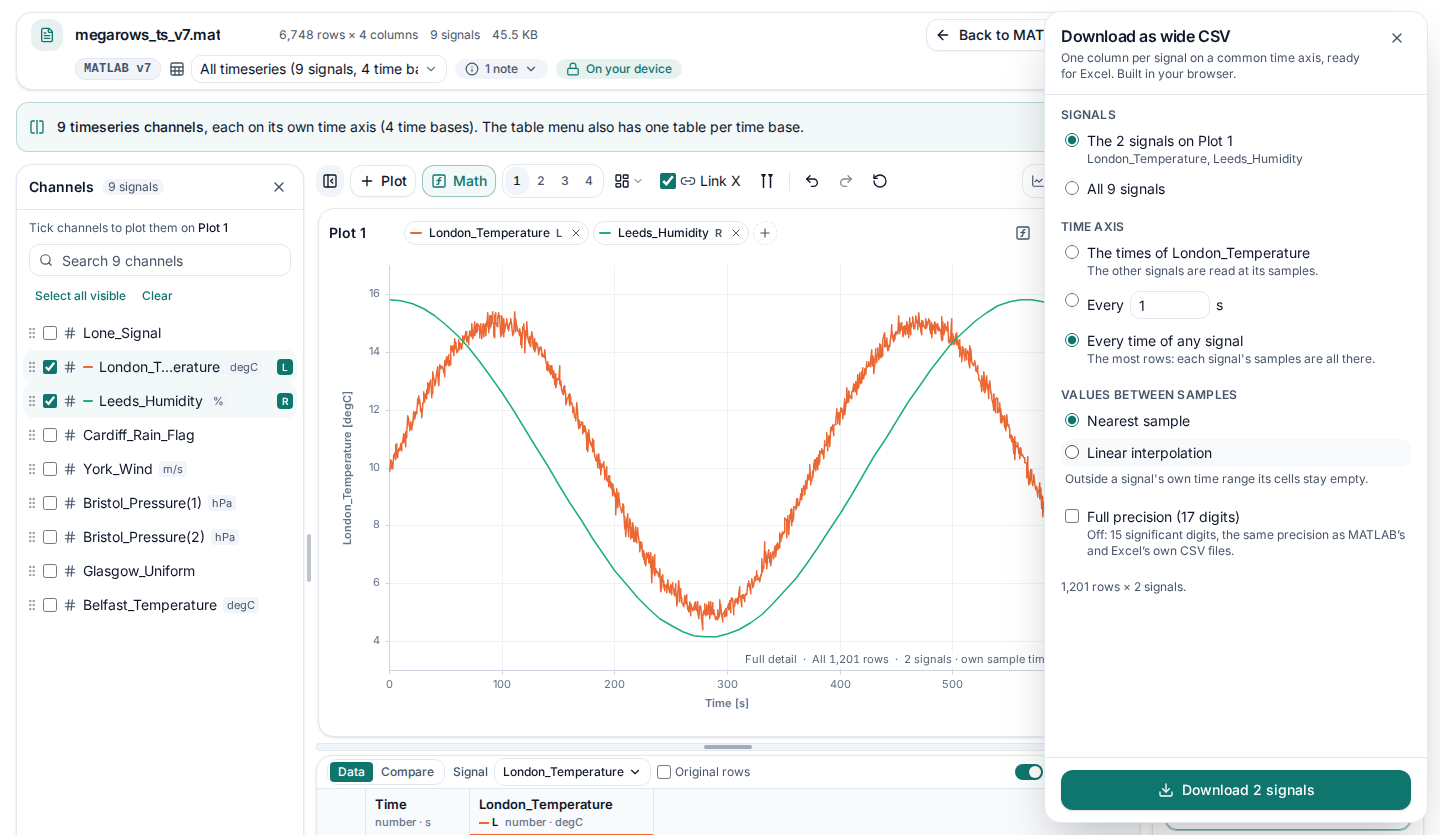
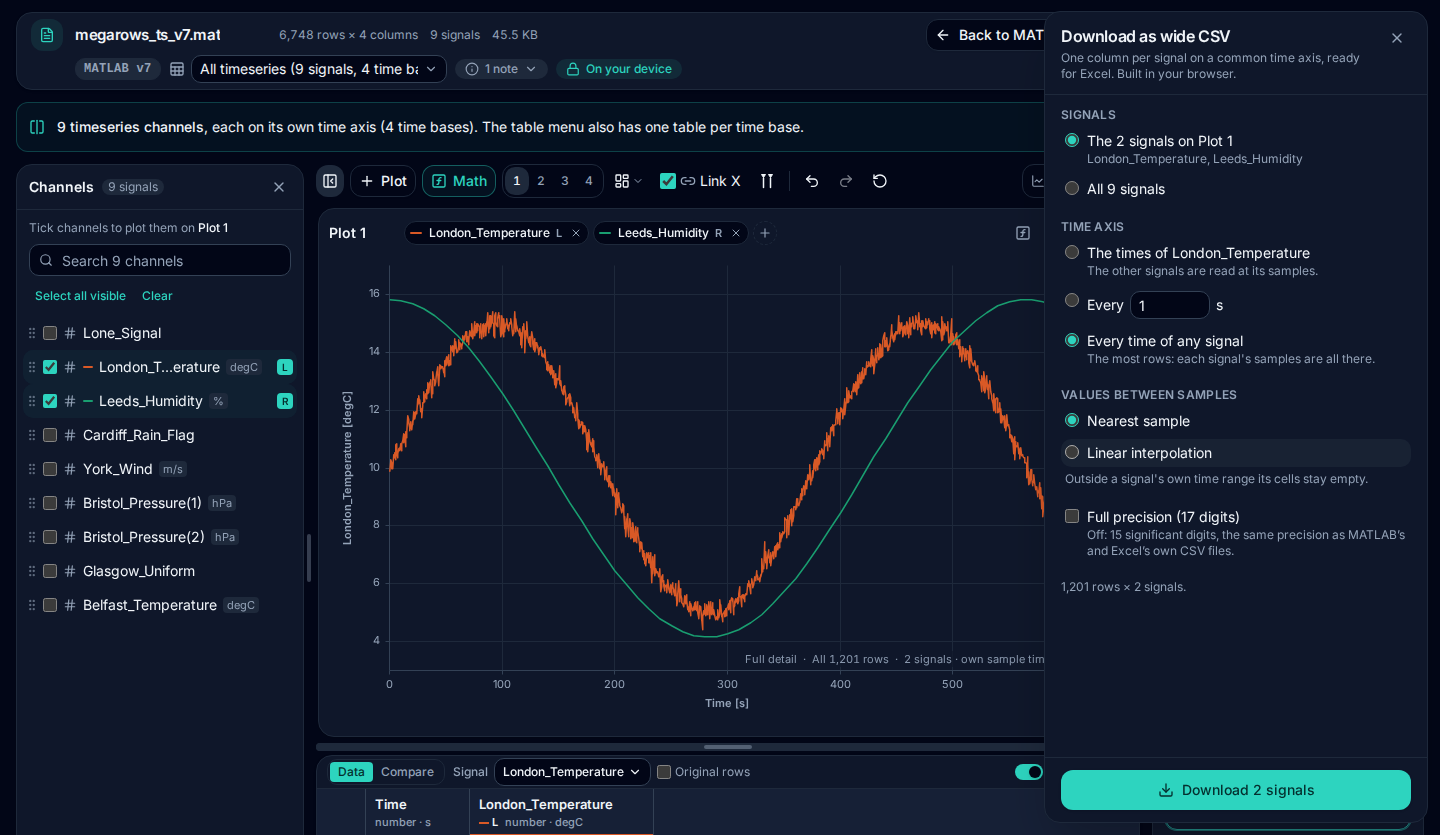
No .mat file to hand? Try a sample MATLAB file in the tool: a made-up Simulink-style drive log with two tables, ready to export. Or download a sample MATLAB MAT file: a Simulink simulation of made-up UK weather.
What the CSV looks like
One header row with the signal names, then one row per sample, with the time in the first column. These are the first rows from a timetable saved in MATLAB, with two signals ticked:
Time [s],Leeds_Humidity,Bristol_Pressure
0,80,1010
10,79.9383350853889,1010.1986693308
20,79.7541008538945,1010.38941834231
30,79.4495694631474,1010.56464247339
Numbers have 15 significant digits, the same precision as MATLAB’s own CSV export (writetable) and Excel; tick “Full precision (17 digits)” under “Do more” for every digit of each number. The table on screen rounds to ten. A duration’s seconds name their unit in the header (Time [s]), a single-precision signal is written in its own shortest form, and a signal you renamed on the chart keeps its new name in the header. “Download chart data (CSV)” covers the range in view: zoom out fully for the whole recording, or zoom in for a single event; “Download all columns (CSV)” always takes every row.
Signals logged at different rates
Simulink logs and timeseries often hold signals at different rates. On one chart each keeps its own time axis, and the CSV keeps every sample: one row for every time of any plotted signal, with a signal’s cell left empty where it has no sample.
Time,Lone_Signal,Leeds_Humidity
0,0,80
0.01,0.187381314585725,
0.02,0.368124552684678,
To get one value per row for every signal, choose Download as wide CSV under “Do more”. Pick the signals on the chart or all of them (the whole file), the time axis (every time of any signal, where it starts when the signals have different times, so that no sample is lost; the times of the first signal; or a fixed interval such as every 0.1 s) and how values between samples are filled: the nearest sample or linear interpolation. The dialog says how many rows the CSV will have, and names the signals a time axis would leave samples out of. Outside a signal’s own time range its cells stay empty.
How your variables become CSV columns
The common complaint about converting a .mat file is that a struct ends up as one cell instead of one column per field. Here every numeric variable and field becomes a column of its own, and the time comes first:
- Several variables. Vectors of the same length line up as columns of one table, next to the time vector that matches them (
t,time,toutor a name liket_rain), which becomes the first column. Variables of another length get a table of their own: pick it from the menu in the top bar. - Structs, nested ones too. Every numeric field becomes a column named by its path inside the struct, so
weather.leeds.humiditybecomes the columnleeds.humidity. Fields of the same length share a table, like separate variables; text fields are listed in the notes instead. - Matrices. One column per matrix column, named from the list of channel names saved with it, where there is one.
- Timeseries, on their own, in structs, in a tscollection or in a logged Simulink Dataset: each becomes a column named after the signal, with its own time; a timeseries with several columns becomes
name(1),name(2). Signals that share a time vector are also offered as one table. - Simulink simulation output saved as it is (
outfromsim), and Simulation Data Inspector exports: logsout, yout, xout, tout and every To Workspace variable become the same tables as when you save them on their own; each Inspector run gets tables of its own. - Tables and timetables. One column per variable, with its unit; a timetable’s row times become the Time column.
- Simulink To Workspace output (Structure with time, Structure, Array): each block’s signals become a table, with their labels as column names.
To convert a whole table, choose Download all columns (CSV) under “Do more”: every column, every row. Timeseries, including those in a Dataset, all go into one wide CSV (“All signals”), up to 200 at once.
Which .mat files it reads
MATLAB v4, v6, v7 and v7.3, including v7.3 files of several GB, and files written by Python. Signals are found in Simulink simulation output saved as it is, Simulation Data Inspector exports, Simulink To Workspace output (Structure with time, Structure, Array and Timeseries formats), logged Datasets (v7 and v7.3), tscollections, MATLAB tables and timetables, dSPACE-style measurement files, structs, matrices with channel names and data-logger exports with a time matrix and a value matrix. Dates and times (in the time zone saved with them), durations (as seconds in the CSV), strings and categories are read too. Objects the viewer can’t read yet, such as containers.Map and your own classes, are listed in the notes and the rest of the file opens. The MAT file viewer page has the full list.
Good to know
- A chart holds up to eight signals, so for more use “Download all columns (CSV)” for a table, or the wide CSV for timeseries (up to 200 signals).
- Between two signals logged at different rates, the wide CSV fills a value only within each signal’s own time range: before its first sample and after its last, its cells stay empty.
- Excel opens at most 1,048,576 rows. For a longer recording, zoom into the part you need first, or pick a coarser interval in the wide CSV.
- Your .mat file is never changed: the tool only reads it.
MAT to Excel
Excel can’t open a .mat file, so convert it to CSV first. To look at the signals without Excel, plot them in the MAT file viewer.
Open it in Excel
MegaRows writes CSV, not .xlsx: there is no direct .xlsx download, and Excel opens the CSV directly. To check the separator first, use Data › From Text/CSV in Excel.
- One table per CSV. A header row with the signal names, then one row per sample, the time first. Signals of another length or time base are a table of their own: pick it from the menu in the top bar and download it too.
- Signals at different rates. “Download chart data (CSV)” keeps each signal’s own samples and leaves a cell empty where a signal has none. “Download as wide CSV” puts timeseries and Simulink logs on one time axis, with the nearest sample or linear interpolation in between.
- Excel’s row limit. A worksheet holds 1,048,576 rows, the header row included. For a longer recording, zoom to the part you need before “Download chart data (CSV)”, split the CSV into Excel-sized files with the CSV splitter, or keep the whole recording in the MAT file viewer.
- Saving as .xlsx. If you need a workbook, open the CSV in Excel, then use File › Save As and choose Excel Workbook (.xlsx).
Other ways to convert .mat to CSV
In MATLAB
With MATLAB at hand, writetable and writematrix do the job in a line:
% A table or timetable, with its column names as the header
writetable(timetable2table(TT), "weather.csv")

% Vectors with a time vector, as columns
writematrix([t(:), temperature(:), humidity(:)], "weather.csv")
In Python
SciPy reads v4 to v7 files, and pandas writes the CSV:
import pandas as pd
from scipy.io import loadmat

data = loadmat("weather.mat", simplify_cells=True)   # v4 to v7 only
df = pd.DataFrame({"time": data["t"], "temperature": data["temperature"]})
df.to_csv("weather.csv", index=False)
On a v7.3 file scipy.io.loadmat stops with NotImplementedError (“Please use HDF reader for matlab v7.3 files”), which is why code written with loadmat fails on files saved with -v7.3. The mat73 package reads them (h5py does too, with the arrays transposed):
import mat73                 # pip install mat73: reads v7.3 files
import pandas as pd

data = mat73.loadmat("weather_v73.mat")
df = pd.DataFrame({"time": data["t"], "temperature": data["temperature"]})
df.to_csv("weather.csv", index=False)
In GNU Octave
Octave’s load reads v7 and older files, and csvwrite writes the numbers (without a header row):
s = load("weather.mat");                          % v7 and older
csvwrite("weather.csv", [s.t(:), s.temperature(:)])
Our guide on opening a .mat file without MATLAB covers these in more detail, with tested code for every MAT-file version.
Going the other way? Use the CSV to MAT converter, or see how to convert CSV to a .mat file in MATLAB, Python or Octave.
Private by design: nothing is uploaded
Your browser reads the .mat file straight from your disk and writes the CSV on your device: the file and its name never leave it, which you can check in the Network tab of your browser’s developer tools. Read the privacy statement for details.
Frequently asked questions
How do I convert a .mat file to CSV without MATLAB?
Open the file in the tool at the top of this page, open “Do more” and choose “Download all columns (CSV)”, or “Download as wide CSV” with “All signals” for timeseries. Your browser reads the file on your own device and saves the CSV: time first, then one column per signal, every number with 15 significant digits, the same precision as MATLAB’s own CSV export (or every digit, with “Full precision”). There is no MATLAB licence or software to install.
Is my .mat file uploaded anywhere?
No. The file is read by your browser on your own device, and neither the file nor its name is sent anywhere. That makes it safe for test-bench data and unreleased results. You can check it in the Network tab of your browser’s developer tools: no request carries the file.
Does it convert MATLAB v7.3 files?
Yes. Every common MAT-file version opens: v4, v6, v7 (the default when you call save) and v7.3, including v7.3 files of several GB, and files written by Python with scipy.io.savemat or hdf5storage.
Does it export every field of a struct?
Yes. Every numeric field becomes a column, named by its path inside the struct, nested structs included, and fields of the same length share a table with their time vector; “Download all columns (CSV)” saves that table whole. Timeseries, also in structs or a Simulink Dataset, all go into one wide CSV, up to 200 at once. Text fields are listed in the notes instead.
Can I put several variables in one CSV?
Yes, when they have the same number of samples: vectors of the same length are lined up as columns of one table next to the time vector that matches them, and “Download all columns (CSV)” saves them together. Variables of another length are in a table of their own, and timeseries at different rates can share one wide CSV on a common time axis.
How are signals logged at different rates exported?
“Download chart data (CSV)” writes one row for every time of any plotted signal, and leaves a signal’s cell empty where it has no sample. “Download as wide CSV” puts the signals on one time axis instead: every time of any signal (where the signals have different times, it starts there, so no sample is lost), the times of the first signal or a fixed interval, with the nearest sample or linear interpolation in between. It says how many rows the CSV will have, and which signals a time axis would leave samples out of.
How do I convert a .mat file to Excel?
Open the .mat file in the MegaRows converter at the top of this page and choose “Download all columns (CSV)” under “Do more”, or “Download as wide CSV” for timeseries. The CSV puts the time first, with numbers to 15 significant digits, and Excel opens it directly, up to 1,048,576 rows. A direct .xlsx download isn’t available yet.
Can I open the CSV in Excel?
Yes. The file is a plain comma-separated CSV with a header row, which Excel opens directly. Excel shows at most 1,048,576 rows, so for a long recording zoom into the part you need before downloading, or choose a coarser interval in the wide CSV. A direct .xlsx export is coming soon.
Related tools and guides
- CSV plotterOpen a CSV, Excel, TXT, JSON, MATLAB, Parquet, HDF5 or LabVIEW TDMS file with millions of rows and plot it in several linked charts, with zoom and statistics. Works today.
- Large CSV viewerOpen a CSV with millions of rows in your browser: scroll every row, see each column’s type and statistics, chart any column. Works today.
- MATLAB .mat file viewerOpen v4 to v7.3 .mat files without MATLAB and plot any signal. Works today.
- Parquet viewerOpen large .parquet files, see the schema at once and plot millions of rows, without Python. Works today.
- TDMS viewerOpen .tdms files from LabVIEW, DIAdem and DAQmx loggers: every group, channel and property, each channel plotted against its time. Works today.
- HDF5 viewerOpen .h5, .hdf5 and NetCDF-4 .nc files: every group, dataset and attribute, each group’s datasets plotted against their time. Works today.
- Parquet to CSVConvert a .parquet file to CSV in your browser, with the columns you pick. Works today.
- TDMS to CSVConvert the channels of a .tdms file to CSV, a group at a time, with its time column, without LabVIEW or Excel add-ins. Works today.
- HDF5 to CSVConvert the datasets of an .h5 or NetCDF-4 file to CSV, a table at a time, with its time column, without Python. Works today.
- Excel to CSVConvert any sheet of an .xlsx or .xlsm workbook to CSV, with the saved results of formulas, real dates and 15 significant digits. Works today.
- JSON to CSVConvert JSON and JSON Lines files to CSV: nested fields become columns named by their path, arrays stay as JSON text. Works today.
- CSV to MATConvert a CSV, Excel, JSON or Parquet file to a MATLAB .mat file: a field per column, with names and units, every row. Works today.
- Merge CSV filesAppend many CSV files into one, even with different columns or separators. Works today.
- Split CSV filesSplit a CSV too big for Excel into parts of 1,000,000 rows, parts of a size you choose, or one file per value of a column. Works today.
- CSV row counterCount the lines in a CSV, TSV or TXT file of any size. Works today.
- CSV statisticsCount, missing values, min, max, mean, standard deviation, RMS and peak to peak of each number column, for the whole file or the rows you zoom into. Works today.
- CSV histogramA histogram of any number column, with automatic bins or 10 to 200 of them, and each bin’s count as a table. Works today.
- CSV too large for Excel?Open every row of a CSV beyond Excel’s 1,048,576-row limit, or work around the limit in six other ways.
- FFT and PSD from a CSVTurn a signal column into an FFT spectrum or a PSD with Grms, with results checked against SciPy. Works today.
- PSD calculatorTurn a vibration column into a power spectral density (Welch) in g²/Hz, with the Grms of any band and a dB view. Works today.
- Spectrogram from CSVSee how the frequencies of a measured signal change over time, as a heat map in dB, with the window and range you choose. Works today.
- FRF and coherencePick an input and an output column and get the frequency response (H1, H2, magnitude and phase) and their coherence. Works today.
- The MegaRows toolboxWhat works today and what is coming next, and why nothing is ever uploaded.
Coming soon to MegaRows: CSV to Excel and PDF reports · Compare CSV versions.
MegaRows processes files locally in your browser. Nothing is uploaded, not even the file name.