Merge CSV Files Online: Combine Multiple CSVs Into One
Combine files with matching or different columns. Free, no upload, no account.
Merge CSV files into one
Drop two or more files here or choose them. Combine CSV, TSV or TXT files with matching or different columns and separators.
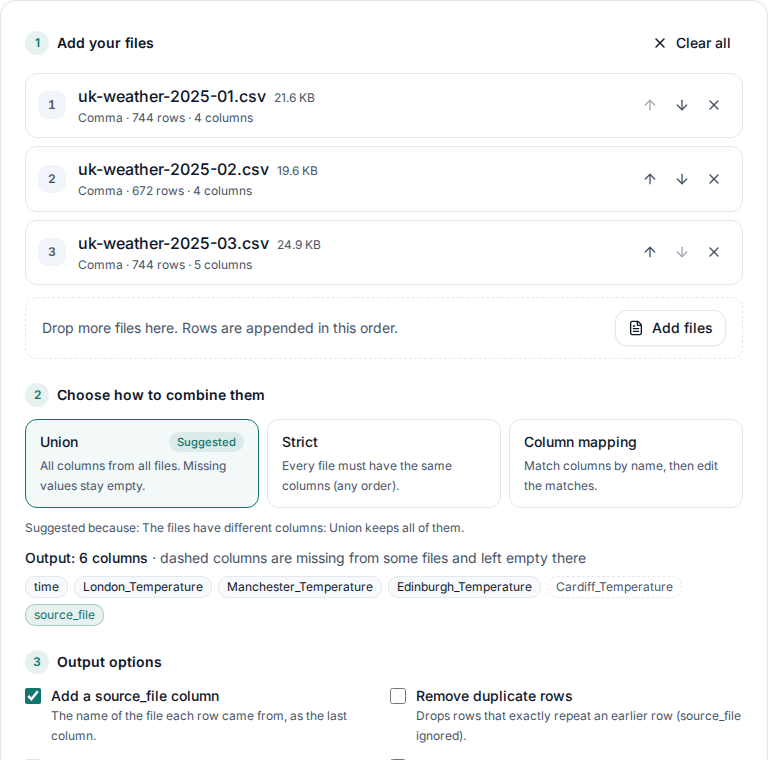
The samples: three months of made-up UK weather, one CSV each. March has an extra city.
Your files never leave your device. They are read and merged by your browser, on your device. Nothing is uploaded.
Glad that helped
MegaRows is free to use, with no ads, and never uploads a file. If it helped, we'd appreciate a coffee to keep it going.
How to merge CSV files
- Add your files. Drop two or more CSV, TSV or TXT files onto the tool, or pick them with “Choose files”. Put them in the order their rows should appear. Each file shows its delimiter, number of rows and columns. No files to hand? “Try it with sample files” adds three small UK weather CSVs.
- Choose how to combine them. Pick Strict for files with the same columns, Union to keep every column from every file, or Column mapping to match columns whose names differ. Then choose output options such as a source_file column or duplicate removal.
- Merge and download. Click “Merge & download”. Your browser builds the merged file on your device and saves it as merged.csv. A summary shows the rows, columns, duplicates removed and the time taken.

Comparing separate runs? Keep one series per file: plot multiple CSV files on one graph instead of merging them, so the end of one run is never joined to the start of the next.
Union, Strict or Column mapping: which mode to use
Merge by column name is not a join by key. These modes align columns and append rows. Records with the same ID or timestamp stay separate.
The tool suggests a mode from the headers of your files. Here is what each one does with these two small files:
january.csv            february.csv
id,name,amount         id,amount,region
1,Alice,10             3,30,North
2,Bob,20
Union: keep every column
The merged file gets every column from every file, in the order they first appear. A value that a file does not have stays empty. Union is the safe choice for exports whose columns changed over time, and it adds a source_file column by default so you can tell the rows apart:
id,name,amount,region,source_file
1,Alice,10,,january.csv
2,Bob,20,,january.csv
3,,30,North,february.csv
Strict: the same columns in every file
Strict mode checks that every file has exactly the same columns and stops with a clear list of what is missing or extra if not. The column order may differ between files: the tool lines the columns up by name and tells you that it did. Use Strict for monthly exports from the same system, where a different header usually means a mistake. The two files above would be refused, because name and region are not in both.
Column mapping: match columns with similar or different names
Similar names are matched for you: capitals, extra spaces, underscores and hyphens are ignored, so Order ID, order_id and ORDER-ID end up in one column. Columns with different names, such as Client in one file and Customer in another, you match yourself: the matches are shown in a table where you can pick a different source column for any file, rename an output column, or skip a column you do not need.
Output options
- source_file column: adds the name of the file each row came from as the last column. On by default in Union and Column mapping.
- Remove duplicate rows: leaves out rows that exactly repeat an earlier row, useful when exports overlap. The source_file column is not part of the comparison.
- Delimiter, line endings and quoting: write commas, semicolons or tabs, with LF or Windows (CRLF) line endings. Quotes are added only where CSV needs them, or around every value if you prefer.
- UTF-8 with BOM: an invisible marker at the start of the file that helps Excel on Windows read accents and symbols correctly.
- Normalise numbers: each file is read with its own delimiter, decimal separator and encoding, and values are copied as written. If you combine a German export (
1.234,5) with an English one (1234.5), this option rewrites decimal commas with a point so every number reads the same way.
Metadata lines above the header, such as the operator and sample rate in a test-rig export, are recognised and skipped, and a units row under the header ([s];[N]) is kept once. The output is a CSV or TSV file; Excel (.xlsx) output is coming soon.
Merging very large CSV files
You can merge files far bigger than Excel could open. When the files share the same header, delimiter and line endings, they are appended unchanged with the header kept once, which is the quickest case: in our tests in Chrome, a 143 MB file with 2 million rows appended to itself took well under a second. Merges that change rows, such as Union with a source_file column, take a little longer.
In Chrome and Edge, tick Save straight to disk to choose the destination first: the merged file is then written to disk as it is produced, which keeps memory use low for multi-gigabyte results. In other browsers, the result is assembled as a download. Want to check the merged file afterwards? The CSV row counter counts its lines. Inspect the result in the large CSV viewer.
Private by design: nothing is uploaded
Online mergers that upload your files send a copy to their server. MegaRows does not: the merge runs entirely in your browser, on your device, and the files and their names are never sent anywhere. That makes it safe for customer lists, financial exports and test data that must not leave your computer.
Other ways to merge CSV files
macOS and Linux: head and tail
head -n 1 january.csv > merged.csv
tail -n +2 -q january.csv february.csv >> merged.csv
Fast and built in, but only for files with identical headers. A file whose last line has no line break gets glued to the next file’s first row, and nothing checks that the columns match.
Python: pandas
import pandas as pd
files = ["january.csv", "february.csv"]
pd.concat([pd.read_csv(f) for f in files]).to_csv("merged.csv", index=False)
pd.concat lines columns up by name like Union mode. It loads everything into memory and may reformat values: leading zeros disappear unless you read every column as text with dtype=str.
Excel: Power Query
Put the files in one folder, then use Data → Get Data → From File → From Folder → Combine. It works well for a few files with matching columns, as long as the combined result stays under Excel’s limit of 1,048,576 rows.
Frequently asked questions
How do I merge CSV files into one?
Add the files to the merge tool on this page, check the suggested mode and click “Merge & download”. The header is written once and the rows of every file are appended in the order you set. It works in your browser, so there is nothing to install and nothing is uploaded.
Is the CSV merger free?
Yes. Appending CSV files into one costs nothing.
Do I need an account to merge CSV files?
No. CSV files are merged without registration or an email address. Signing in adds workspaces; merging does not need it.
How do I combine CSV files with different columns?
Use Union mode: the merged file gets every column from every file, in the order they first appear, and values a file does not have stay empty. If the same column is spelled differently in different files, for example “Order ID” and “order_id”, use Column mapping, which matches names ignoring capitals, spaces, underscores and hyphens and lets you fix any match by hand.
Can I merge CSV files by a common column or key?
Column mapping matches column names and appends rows. It does not join records side by side by ID or timestamp. For a key-based join, use Power Query Merge or pandas.merge.
Can I append CSV files beyond Excel’s row limit?
Yes. The merger appends CSV rows without using an Excel worksheet. Excel displays at most 1,048,576 rows per worksheet, including the header. Split the result into smaller files to open all records in worksheets.
How can I merge CSV files without Excel?
Use a dedicated tool instead of a spreadsheet. The merge tool on this page reads the files directly, so it is not limited to Excel’s 1,048,576 rows and does not change your dates or numbers. On the command line, tail or PowerShell can append files too, and pandas.concat does it in Python.
How many files can I merge, and how big can they be?
There is no fixed file or row limit. Available memory and storage set the practical size. Chrome and Edge can save straight to disk; other browsers assemble a download. Removing duplicates also needs memory for the distinct rows.
Are my files uploaded?
No. The files are read and merged by your browser on your own device and are never sent anywhere, not even their names. You can check this in the Network tab of your browser’s developer tools while a merge runs.
Will merging change my numbers, dates or quotes?
No. Values are written back exactly as they appear in your files, so dates, leading zeros and numbers keep their original text. Quotes are added only where CSV requires them, for example around a value that contains a comma. The one optional change is “Normalise numbers”, which rewrites decimal commas such as 1.234,5 as 1234.5 when you combine files from different countries.
Can I remove duplicate rows while merging?
Yes. Tick “Remove duplicate rows” and any row that exactly repeats an earlier one, in the same file or another, is left out. The source_file column is ignored for this comparison, and the summary shows how many duplicates were removed.
Can I merge Excel (.xlsx) files or save the result as Excel?
Not yet. The tool reads and writes text files: CSV, TSV and TXT. Excel input and output are coming soon. Until then, save each sheet as CSV from Excel first, and tick “UTF-8 with BOM” so Excel shows accented characters correctly when it opens the merged file.
Related tools and guides
- CSV plotterPlot any column of the merged file, zoom in and check the statistics, with millions of rows.
- CSV row counterCount the lines in a CSV, TSV or TXT file of any size, for example to check a merge.
- Split CSV filesThe other way round: split a merged file too big for Excel into parts of 1,000,000 rows, or one file per value of a column.
- Guide: how to merge CSV filesSix ways to combine CSV files, from one command to pandas, and nine pitfalls to avoid.
- CSV too large for Excel?Open every row of a merged file Excel can’t hold, or work around its 1,048,576-row limit in six other ways.
- The MegaRows toolboxWhat works today and what is coming next, and why nothing is ever uploaded.
Coming soon to MegaRows: CSV, Excel, JSON and PDF converters · Compare two versions of a CSV.
MegaRows processes files locally in your browser. Read our privacy statement for details.