Plot multiple CSV files on one graph
By MegaRows · Published · 8 min read
Three test runs, a week of daily logs, readings before and after a change: comparing them usually means one CSV file per run, each with its own time column, column names and layout. This guide shows how to put several CSV files on one chart in your browser, one series per file and each labelled with its file, with three example runs to try. It also covers when to overlay, merge or join, how to check columns and units, what happens when one file has dates and another elapsed seconds, and how gaps, sample rates and large files are drawn.
Quick start: several CSV files on one chart
Choose the files together
Open the CSV plotter and pick two or three CSV files at once in the file dialog (hold Ctrl, or ⌘ on a Mac, to pick several), or drop them together. Each file gets a chip at the top with its tag, A, B or C, in a colour of its own. “+ Add” at the top of the column list adds a file to the ones already open. Up to eight files can be open together, and they are read on your device, never uploaded.
Pick each file’s X and Y
The column list is grouped by file: tick the column you want from each one, such as its temperature, and it joins the same chart. The line at the top of the list names the X, such as “X: Time · A”. Every other file is drawn against its own column of the same name or, if it has none, against its own default X, usually its time column. Files whose columns share a name open with that column of each file already on the chart.
Read them on one chart
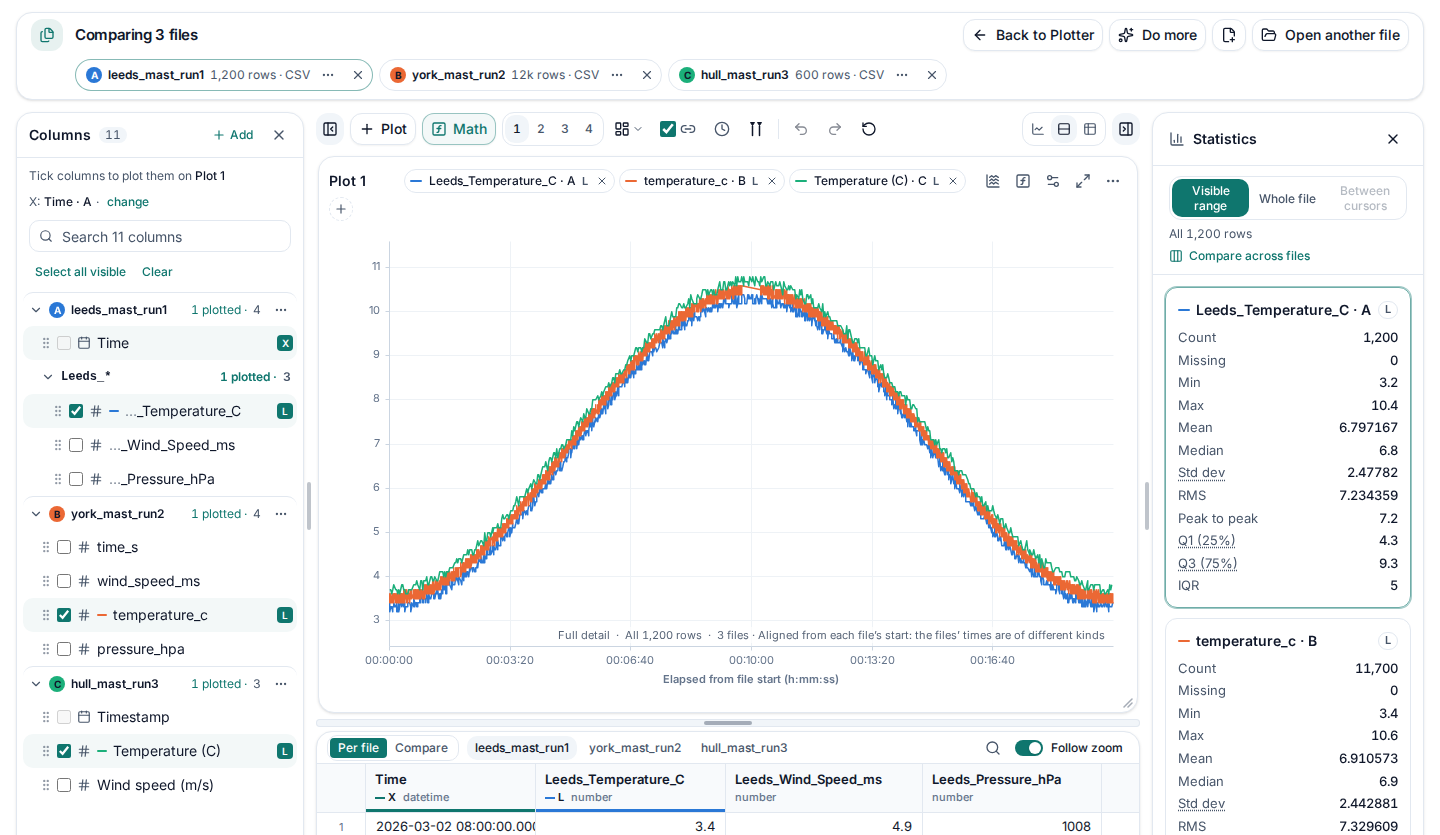
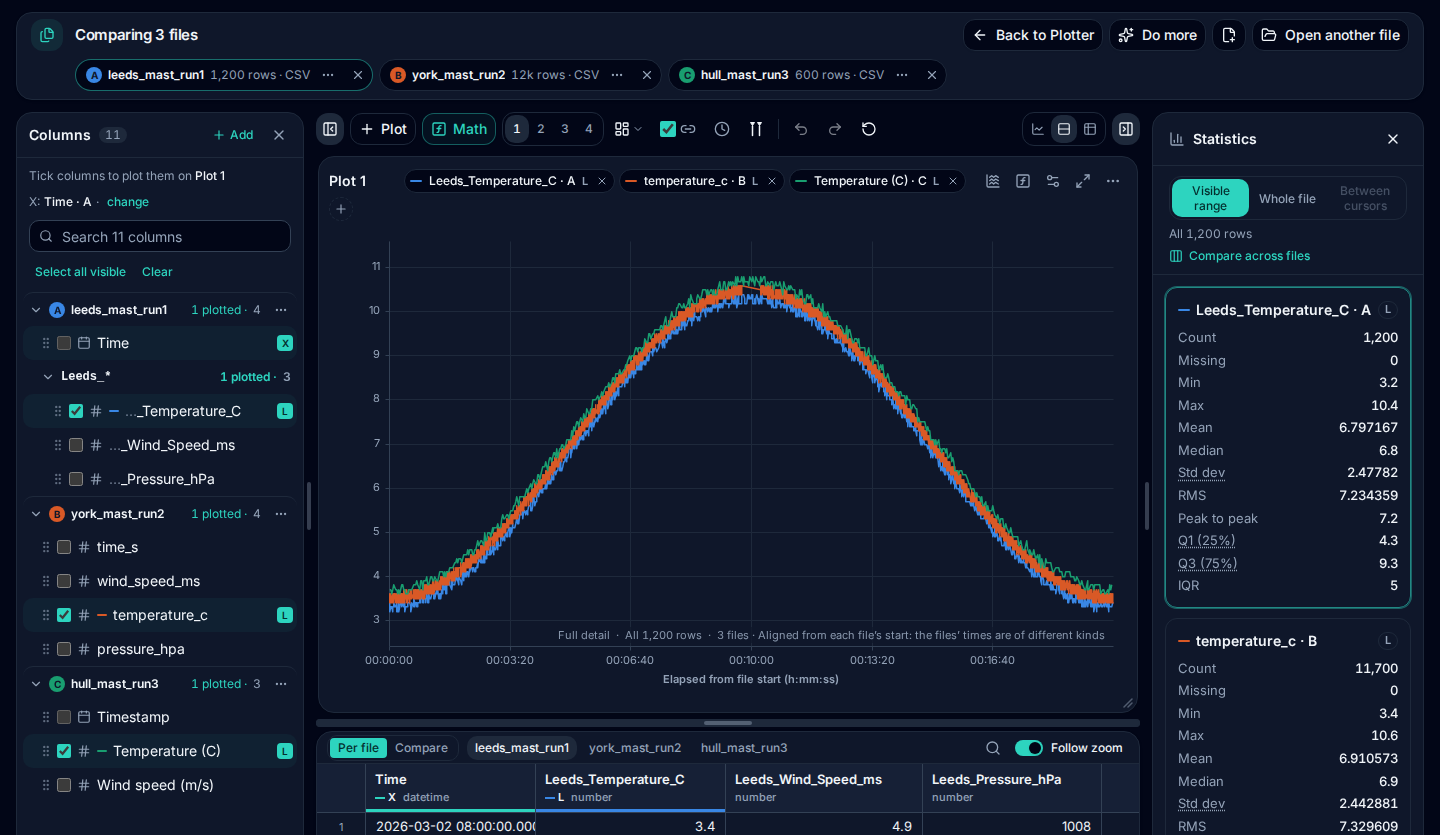
Each series has a chip above the chart with its column and its file’s tag, such as “temperature_c · B”, in its file’s colour. Hover a chip for the file’s full name; the legend of a saved PNG says “york_mast_run2 · temperature_c”. Click a chip for that run’s statistics.
Three files · free · no upload · no account
- leeds_mast_run1.csv (48.3 KB)
- york_mast_run2.csv (250 KB)
- hull_mast_run3.csv (20.0 KB)
The example is three made-up 20-minute runs of weather masts at Leeds, York and Hull, written the way different loggers write: the Leeds file has dates and times (UTC), from 08:00:00, one row a second; the York file seconds from its start, with no date, ten rows a second, with a 30-second pause; the Hull file dates and times (UTC), from 08:00:30, one row every 2 seconds.
Overlay, merge, join or compare differences?
“Putting CSV files together” can mean four different jobs. Pick the one that matches your files before you start:
| Your files | What you want | Do this |
|---|---|---|
| Separate runs, tests or days of the same measurement | Each run as its own line on one chart | Overlay them, as on this page: one series per file. |
| Parts of one long log (part 1, part 2 …) with the same columns | One continuous run | Append them into one file first: see how to merge CSV files. |
| Different measurements that share a key, such as a station or a time | One row per key, with the columns of both | Join them on the key: a lookup in Excel, a merge in pandas or a JOIN in SQL. |
| Two versions of the same table | The cells that changed | Use a diff tool that compares the two files row by row. |
The merge tool appends files in your browser when the parts belong to one log. For separate runs, keep one series per file: merging them would join the end of one run to the start of the next.
Check each file’s columns and units
Files from different loggers rarely agree on names. In the example the same temperature is Leeds_Temperature_C in one file, temperature_cin another and Temperature (C) in the third, and the columns come in a different order. The plotter matches columns across files only by the same name, in any case, so here you tick each file’s temperature yourself. When the names do match, the files open with that column of each already on the chart, and a column’s menu (a right-click on it in the list) offers “Plot from every file”.
The first lines of each file:
leeds_mast_run1.csv
Time,Leeds_Temperature_C,Leeds_Wind_Speed_ms,Leeds_Pressure_hPa
2026-03-02T08:00:00.000Z,3.4,4.9,1008.0
york_mast_run2.csv
time_s,wind_speed_ms,temperature_c,pressure_hpa
0.0,7.0,3.5,1008.4hull_mast_run3.csv
# Hull mast, synthetic
Timestamp;Temperature (C);Wind speed (m/s)
2026-03-02T08:00:30.000Z;3,7;6,1The Hull file is written the European way: a comment line above the header, semicolons between the columns and decimal commas. The plotter reads it as it is: the line starting with # is skipped, the semicolons are found, and 3,7 is read as 3.7, so there is nothing to convert first. It opens with 600 rows and 3 columns.
Check the units too. All three runs here are in °C, m/s and hPa, with the unit in the column’s name. A chart can’t tell that one file holds °F and another °C, so convert one of them first, in the file or with a formula in Math.
Absolute time or elapsed time for each run
Leeds and Hull write dates and times; York writes seconds from its own start, in a column called time_s, with no date. How they share an axis depends on that:
- Dated files keep their clock. Leeds and Hull on one chart are drawn by their timestamps, 08:00 to 08:20 on 2 March 2026, and Hull’s line starts 30 seconds after Leeds’s, as it did.
- Relative lines the runs up at 0. Press Relative next to Link X in the toolbar (“Relative | File”): each file’s times are counted from its own first timestamp, the axis reads in elapsed hours, minutes and seconds, and the chart’s corner says where 0 is.
- A file of elapsed seconds has no clock. With York in the set the files’ times are of different kinds, so each run is drawn from its own start, in elapsed time, and the corner says “3 files · Aligned from each file’s start: the files’ times are of different kinds”. Hull’s late start is not shown then; compare the dated files on their own when the clock matters.
A plot of several files has the same choice in Plot settings → Axes → X alignment: Automatic, Same X values, From each file’s start or Row number. Nothing is shifted or stretched to make runs fit: each reading keeps its own time.
Keep each run identifiable
A chart of several runs is only useful while you can tell them apart. Each file keeps one colour, the colour of its tag on its chip, and each series of that file takes it where it is free, so a run keeps its colour from chart to chart. The file’s name follows its series into the chips, the statistics, the Compare tables and the legend of a saved PNG.
- Name files by site and run before you open them, as leeds_mast_run1.csv does, rather than export (3).csv.
- Rename a file in the plotter from its chip’s ⋯ menu → Rename, for example to “Leeds run 1”: the legend and the image use the new name, and the file on your disk stays as it is.
Gaps, sample rates and large files
The runs need not share a rate. Leeds logs once a second, York ten times a second and Hull every 2 seconds, and each reading is drawn at its own time: nothing is resampled or interpolated, and a slower run has fewer points.
York stopped logging for 30 seconds, from 584.9 to 615.0 seconds. The pause keeps its real length on the time axis, and the line joins the last reading before it to the first after it with one straight stroke, plain to see in the noisy trace; the data table shows the jump. Only an empty cell leaves a break in a line, not a missing row. To see every reading as a dot, so the pause shows as an empty stretch, switch the plot to a scatter chart in its ⋯ menu.
Each file is read on your device, and a file of millions of rows opens like a small one: the chart shows an overview that keeps every peak and fills in full detail as you zoom. Up to eight files can be open and up to eight series can share a chart, and the plotter asks first when the files together may not fit in the device’s memory. Our guide shows how to plot a large CSV file.
Compare, then the next step
With the runs on one chart, “Compare across files” in the statistics panel, or the Compare tab under the plots, puts every statistic of each file side by side with the differences worked out, and lines the rows up at the same X. Each table downloads as a CSV. To read through every row of a run first, open it in the large CSV viewer, which shows the data table first.
For a chart you rebuild every week, or dozens of runs, a script repeats the same steps every time. In Excel, put each run on a sheet, make an XY (scatter) chart of the first and add the others with Select Data, as the FAQ below explains. In Python, pandas reads each file with its own settings and Matplotlib draws them on one axes, each from its own start:
import pandas as pd
import matplotlib.pyplot as plt

def elapsed(times):
    return (times - times.iloc[0]).dt.total_seconds()

leeds = pd.read_csv("leeds_mast_run1.csv", parse_dates=["Time"])
york = pd.read_csv("york_mast_run2.csv")
hull = pd.read_csv("hull_mast_run3.csv", sep=";", decimal=",", comment="#", parse_dates=["Timestamp"])

fig, ax = plt.subplots()
ax.plot(elapsed(leeds["Time"]), leeds["Leeds_Temperature_C"], label="leeds_mast_run1")
ax.plot(york["time_s"], york["temperature_c"], label="york_mast_run2")
ax.plot(elapsed(hull["Timestamp"]), hull["Temperature (C)"], label="hull_mast_run3")
ax.set_xlabel("Seconds from each run's start")
ax.set_ylabel("Temperature (°C)")
ax.legend()
fig.savefig("three-runs.png")
These lines ran on the three example files with pandas 3.1 and Matplotlib 3.11 (Python 3.12). Matplotlib draws a straight stroke across York’s pause as well.
Plot your runs on one chart
Choose the CSV files together, tick a column from each and read them side by side. It’s free, needs no account, and your files never leave your device.
Open the CSV plotterFrequently asked questions
How do I plot multiple lines on the same graph?
Tick the columns you want in the MegaRows CSV plotter: each one becomes a line on the same chart, up to eight, on a left and a right axis. With several files open, tick a column from each, and every line is labelled with its file.
How do I graph data from a CSV file?
Open it in a plotter: a sorted time, date or number column becomes the X axis and a first chart is drawn straight away. Tick the columns to plot, pick a line, bar or scatter chart in the plot’s ⋯ menu and save it as a PNG. In a spreadsheet, select the columns and insert a chart.
How do I convert a CSV file to a graph online?
Use an online plotter that reads the file in your browser. Drop the file on the CSV plotter, pick the columns and save the chart as a PNG: the file is opened on your device and never uploaded, with no sign-up.
How do I put multiple CSV files together?
It depends on the files. Separate runs you want to compare can stay separate files: plot them together, one series per file. Parts of one long log with the same columns are appended into one file, as our guide to merging CSV files shows. Tables that share a key, such as a station or a time, are joined on that key.
Can CSV handle 2 million rows?
Yes. The CSV format has no row limit: the program and the device set it. Excel stops at 1,048,576 rows a sheet, while the MegaRows plotter opens files of millions of rows in the browser, as far as the device’s memory allows. Our guide shows how to plot a large CSV file.
How do I combine multiple graphs into one in Excel?
Make one chart and add each data set to it as a series: right-click the chart, choose Select Data and add each run’s range. Microsoft calls a data series “a row or column of numbers that are entered in a worksheet and plotted in your chart”. For runs with their own times, choose an XY (scatter) chart, since a line chart spreads its categories evenly along the horizontal axis.
Sources
The documentation behind what this page says about Excel’s charts and about reading the files in pandas, read on 24 October 2026.
Related tools and guides
- CSV plotterOpen a CSV, Excel, TXT, JSON, MATLAB, Parquet, HDF5 or LabVIEW TDMS file with millions of rows and plot it in several linked charts, with zoom and statistics. Works today.
- Large CSV viewerOpen a CSV with millions of rows in your browser: scroll every row, see each column’s type and statistics, chart any column. Works today.
- MATLAB .mat file viewerOpen v4 to v7.3 .mat files without MATLAB and plot any signal. Works today.
- Parquet viewerOpen large .parquet files, see the schema at once and plot millions of rows, without Python. Works today.
- TDMS viewerOpen .tdms files from LabVIEW, DIAdem and DAQmx loggers: every group, channel and property, each channel plotted against its time. Works today.
- HDF5 viewerOpen .h5, .hdf5 and NetCDF-4 .nc files: every group, dataset and attribute, each group’s datasets plotted against their time. Works today.
- MAT to CSVConvert the signals of a .mat file, v4 to v7.3, to a CSV for Excel or Python, without MATLAB. Works today.
- Parquet to CSVConvert a .parquet file to CSV in your browser, with the columns you pick. Works today.
- TDMS to CSVConvert the channels of a .tdms file to CSV, a group at a time, with its time column, without LabVIEW or Excel add-ins. Works today.
- HDF5 to CSVConvert the datasets of an .h5 or NetCDF-4 file to CSV, a table at a time, with its time column, without Python. Works today.
- Excel to CSVConvert any sheet of an .xlsx or .xlsm workbook to CSV, with the saved results of formulas, real dates and 15 significant digits. Works today.
- JSON to CSVConvert JSON and JSON Lines files to CSV: nested fields become columns named by their path, arrays stay as JSON text. Works today.
- CSV to MATConvert a CSV, Excel, JSON or Parquet file to a MATLAB .mat file: a field per column, with names and units, every row. Works today.
- Merge CSV filesAppend many CSV files into one, even with different columns or separators. Works today.
- Split CSV filesSplit a CSV too big for Excel into parts of 1,000,000 rows, parts of a size you choose, or one file per value of a column. Works today.
- CSV row counterCount the lines in a CSV, TSV or TXT file of any size. Works today.
- CSV statisticsCount, missing values, min, max, mean, standard deviation, RMS and peak to peak of each number column, for the whole file or the rows you zoom into. Works today.
- CSV histogramA histogram of any number column, with automatic bins or 10 to 200 of them, and each bin’s count as a table. Works today.
- CSV too large for Excel?Open every row of a CSV beyond Excel’s 1,048,576-row limit, or work around the limit in six other ways.
- FFT and PSD from a CSVTurn a signal column into an FFT spectrum or a PSD with Grms, with results checked against SciPy. Works today.
- PSD calculatorTurn a vibration column into a power spectral density (Welch) in g²/Hz, with the Grms of any band and a dB view. Works today.
- Spectrogram from CSVSee how the frequencies of a measured signal change over time, as a heat map in dB, with the window and range you choose. Works today.
- FRF and coherencePick an input and an output column and get the frequency response (H1, H2, magnitude and phase) and their coherence. Works today.
- The MegaRows toolboxWhat works today and what is coming next, and why nothing is ever uploaded.
Coming soon to MegaRows: CSV to Excel and PDF reports · Compare CSV versions.