Plot frequency data from a CSV on a log X axis
By MegaRows · Published · 6 min read
A frequency response from a swept-sine test, a spectrum saved by an analyser or the measured gain of a filter usually comes as a CSV with a frequency column and a magnitude column. Plotted as it is, the X axis often shows row numbers, or the first decades are squeezed into a sliver at the left. This guide shows how to put the frequency column on a log X axis in your browser, with an example file to try, what happens to zero and negative frequencies, why dB values stay on a linear Y axis, why Excel’s line chart has no log X option, and when a file needs an FFT, a PSD or an FRF first.
What a frequency-response CSV looks like
One row per frequency: a frequency column, usually in Hz, and one or more value columns, such as a magnitude in dB, a gain ratio or a phase in degrees. The frequencies are often spaced evenly on a log scale, the same number of rows in each decade, so the steps grow as the frequency rises. These are the first rows and the last row of our example file:
Frequency (Hz),Magnitude (dB)
1,0.01
1.023,-0.01
1.047,-0.01
1.072,0.00
…
1000,-36.68
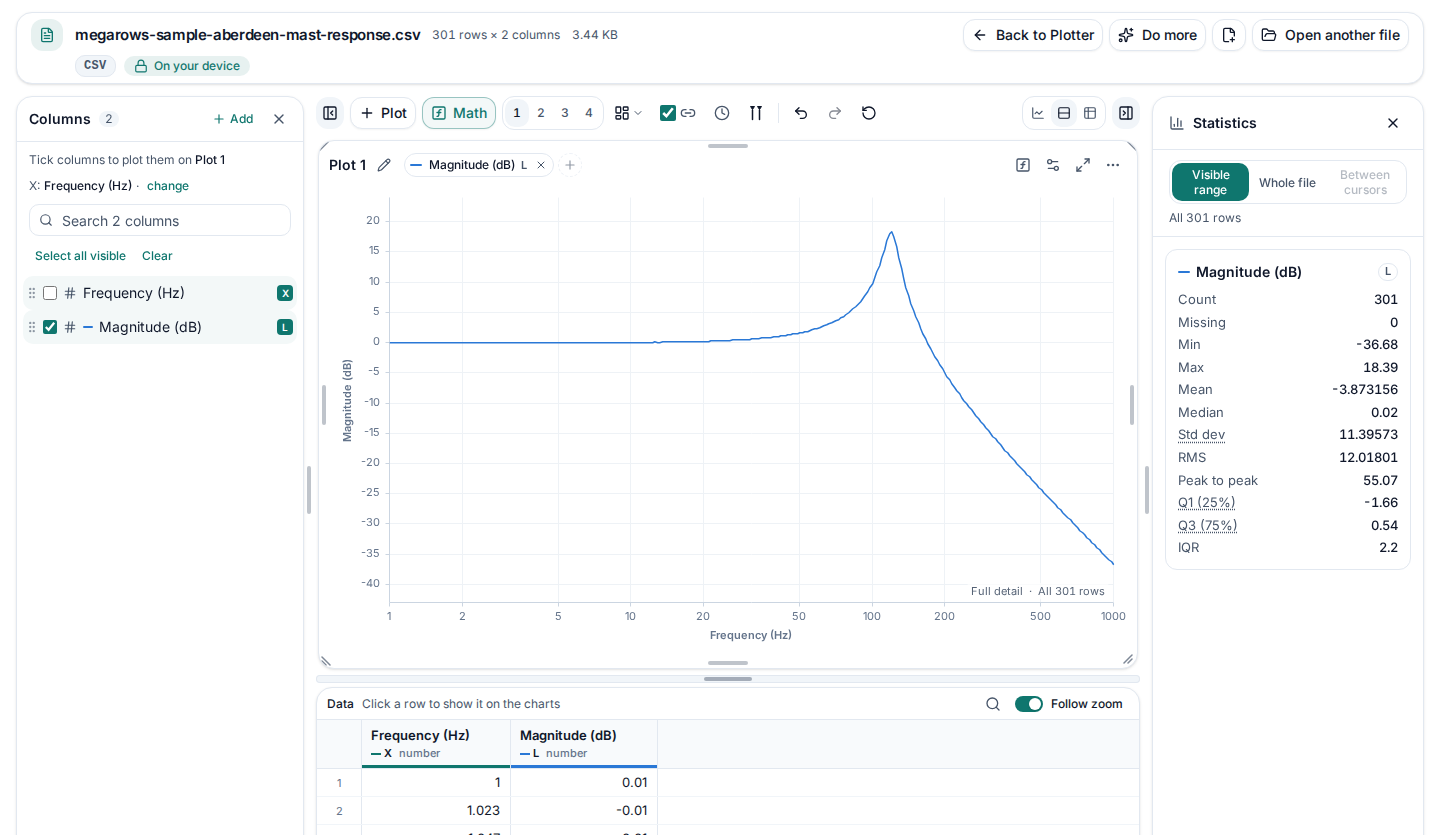
The example is a made-up frequency response of an accelerometer on a weather mast at Aberdeen: 301 rows from 1 Hz to 1,000 Hz, 100 a decade, with the magnitude in dB. Download the example file (CSV, 3.44 KB) or plot it with the steps below.
Plot it on a log X axis in three steps
Open the file
Drop the CSV onto the CSV plotter, or click “Choose a file”. It is read on your device and never uploaded, and a file with millions of rows opens too. Excel workbooks and the other formats the plotter opens work the same way.
Make the frequency column the X
The line at the top of the column list says what the X is, such as “X: Frequency (Hz) · change”. A sorted frequency column usually becomes the X by itself. If the line says “X: Row number”, press “change” and pick your frequency column; the plotter may also suggest it under that line (“Plot against Frequency (Hz)?”), and Use sets it.
Tick “Log scale, X”
Open the plot’s ⋯ menu, choose Plot settings…, go to Axes and tick “Log scale, X”. Each decade, 1 to 10 Hz, 10 to 100 Hz and so on, now gets the same width. While the X is still the row number the box is greyed: press it anyway and it lists the number columns, frequency columns first, and the one you pick becomes the X on a log axis in one step.
Reading the example
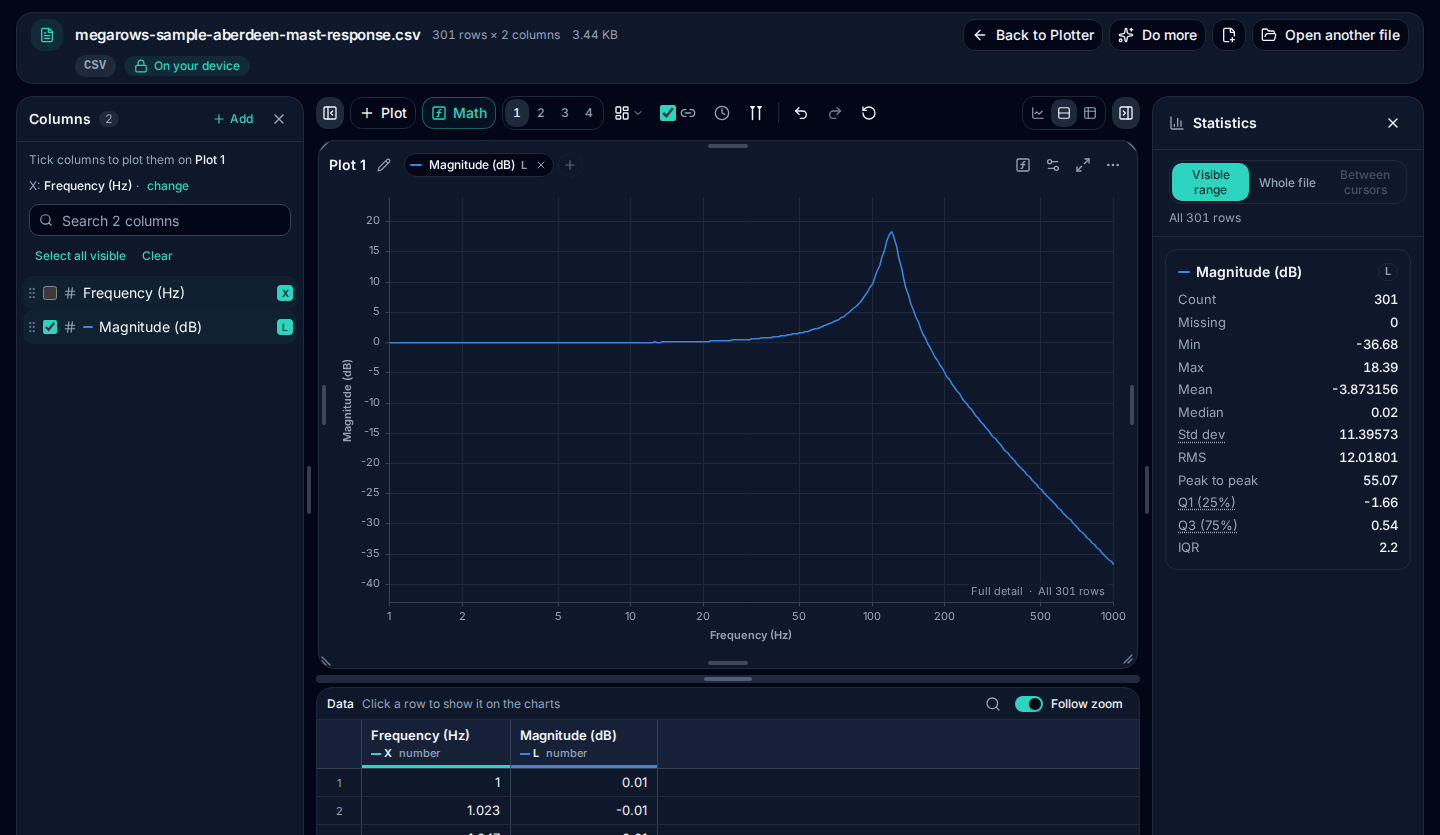
On a linear X axis, the 200 rows below 100 Hz, two thirds of the file, share the left tenth of the chart, and the flat part and the rise to the resonance are squeezed against the axis. On a log X axis, 1 to 10 Hz, 10 to 100 Hz and 100 to 1,000 Hz each get a third of the width, and the shape reads at a glance:
| Frequency | Magnitude (dB) | What it shows |
|---|---|---|
| 1 Hz | 0.01 | Flat: the accelerometer reads what the mast does |
| 10 Hz | 0.07 | Still flat |
| 100 Hz | 9.83 | Rising towards the resonance |
| 120.2 Hz | 18.39 | The highest row: the mounting’s resonance |
| 1,000 Hz | −36.68 | Falling about 40 dB a decade |
Within 1 dB of 0 dB up to about 40 Hz, the response peaks at 18.39 dB at 120.2 Hz, the resonance of the accelerometer’s mounting, and falls about 40 dB a decade above it. The file was made from a second-order system with a resonance at 120 Hz and 6 % damping, plus a ripple of at most 0.05 dB, and SciPy’s freqs of the same system differs from every row by at most 0.05 dB.
Zero, DC and negative frequencies
A log axis has no place for 0 or for negative numbers: the logarithm of 0 is minus infinity. Many spectra start with a 0 Hz row, the DC value, and a two-sided FFT has negative frequencies too. With “Log scale, X” ticked, the plotter leaves out every row whose X is at or below 0, and a note in the chart’s corner counts them, for example “1 row with X at or below 0 is not shown on a log axis”. The rows are not deleted: they stay in the data table and in any CSV you download, and unticking “Log scale, X” draws every point again.
Don’t replace 0 with a tiny frequency such as 0.001 Hz to keep the row on the chart: the axis would then stretch over three empty decades before 1 Hz.
Magnitude in dB: keep the Y axis linear
A value in dB is already logarithmic: 20 × log10 of an amplitude ratio, or 10 × log10 of a power ratio. Plot it on an ordinary linear Y axis, the default, and a log X axis gives the familiar semi-log frequency plot. A log Y axis on top of dB would take the logarithm twice, and has no place for the negative dB of a response below its reference. If the column is a plain ratio instead, such as 0.5 or 8.3, tick “Log scale, left” in the same Axes tab for a log Y axis.
Why Excel’s line chart has no log X axis
In Excel, a line chart’s horizontal axis is a category axis. Microsoft’s documentation says a line chart distributes category data evenly along the horizontal axis, and when the data gives no categories they are made up as 1, 2, 3 and so on: the row numbers again. An XY (scatter) chart has two value axes instead, and Microsoft lists turning the horizontal axis into a logarithmic scale as a reason to choose one. So in Excel, chart the frequency and magnitude columns as a scatter chart, with lines if you like, and set its horizontal axis to a logarithmic scale. Microsoft’s pages, read on 23 October 2026, are listed under Sources.
A time signal needs an FFT, a PSD or an FRF first
If the CSV holds readings over time, a time column and an acceleration, pressure or voltage, it isn’t frequency data yet, and a time axis can’t be logarithmic: the plotter says so. Turn it into frequencies first:
- FFT from CSV: the amplitude of each frequency in a signal, for tones such as a 50 Hz hum.
- The PSD calculator: the power spectral density of random vibration, in g²/Hz from g, with the Grms.
- FRF and coherence: the response of a system, magnitude and phase, from its input and output signals.
Each result plot has Log X and Log Y buttons above it, and its CSV button saves the result, ready to plot on a log X axis here or anywhere else.
Plot your frequency data
Open the CSV in the plotter, make the frequency column the X and tick “Log scale, X”. It’s free, needs no account, and your file never leaves your device.
Open the CSV plotterFrequently asked questions
How do I plot a frequency response from a CSV without coding?
Open the CSV in the MegaRows CSV plotter, make the frequency column the X (the line at the top of the column list then names it) and tick “Log scale, X” in Plot settings → Axes. It runs in your browser, free, and the file is not uploaded.
Why is Excel’s logarithmic option missing for the X axis?
Because a line chart’s horizontal axis is a category axis: Microsoft’s documentation says a line chart distributes category data evenly along it, and numbers them 1, 2, 3 when the data gives no categories. An XY (scatter) chart has two value axes, and its horizontal axis can be turned into a logarithmic scale.
Should I use log X, log Y, or convert the magnitude to dB?
Log X for the frequency, whenever it spans more than a decade or so. For the magnitude, pick one: dB, which is already logarithmic and goes on a linear Y axis, or a plain ratio on a log Y axis (“Log scale, left”). Never both, or the logarithm is taken twice.
When do I need phase for a Bode-style plot?
A Bode plot is the magnitude and the phase against a log frequency axis. The magnitude alone shows where a system amplifies or attenuates and where it resonates; the phase is needed to see how far the output lags, to judge stability margins or to fit a model. From input and output signals in a CSV, the FRF and coherence page works out both.
Sources
The documentation behind what this page says about Excel’s charts and about Bode plots, read on 23 October 2026.
Related tools and guides
- CSV plotterOpen a CSV, Excel, TXT, JSON, MATLAB, Parquet, HDF5 or LabVIEW TDMS file with millions of rows and plot it in several linked charts, with zoom and statistics. Works today.
- Large CSV viewerOpen a CSV with millions of rows in your browser: scroll every row, see each column’s type and statistics, chart any column. Works today.
- MATLAB .mat file viewerOpen v4 to v7.3 .mat files without MATLAB and plot any signal. Works today.
- Parquet viewerOpen large .parquet files, see the schema at once and plot millions of rows, without Python. Works today.
- TDMS viewerOpen .tdms files from LabVIEW, DIAdem and DAQmx loggers: every group, channel and property, each channel plotted against its time. Works today.
- HDF5 viewerOpen .h5, .hdf5 and NetCDF-4 .nc files: every group, dataset and attribute, each group’s datasets plotted against their time. Works today.
- MAT to CSVConvert the signals of a .mat file, v4 to v7.3, to a CSV for Excel or Python, without MATLAB. Works today.
- Parquet to CSVConvert a .parquet file to CSV in your browser, with the columns you pick. Works today.
- TDMS to CSVConvert the channels of a .tdms file to CSV, a group at a time, with its time column, without LabVIEW or Excel add-ins. Works today.
- HDF5 to CSVConvert the datasets of an .h5 or NetCDF-4 file to CSV, a table at a time, with its time column, without Python. Works today.
- Excel to CSVConvert any sheet of an .xlsx or .xlsm workbook to CSV, with the saved results of formulas, real dates and 15 significant digits. Works today.
- JSON to CSVConvert JSON and JSON Lines files to CSV: nested fields become columns named by their path, arrays stay as JSON text. Works today.
- CSV to MATConvert a CSV, Excel, JSON or Parquet file to a MATLAB .mat file: a field per column, with names and units, every row. Works today.
- Merge CSV filesAppend many CSV files into one, even with different columns or separators. Works today.
- Split CSV filesSplit a CSV too big for Excel into parts of 1,000,000 rows, parts of a size you choose, or one file per value of a column. Works today.
- CSV row counterCount the lines in a CSV, TSV or TXT file of any size. Works today.
- CSV statisticsCount, missing values, min, max, mean, standard deviation, RMS and peak to peak of each number column, for the whole file or the rows you zoom into. Works today.
- CSV histogramA histogram of any number column, with automatic bins or 10 to 200 of them, and each bin’s count as a table. Works today.
- CSV too large for Excel?Open every row of a CSV beyond Excel’s 1,048,576-row limit, or work around the limit in six other ways.
- FFT and PSD from a CSVTurn a signal column into an FFT spectrum or a PSD with Grms, with results checked against SciPy. Works today.
- PSD calculatorTurn a vibration column into a power spectral density (Welch) in g²/Hz, with the Grms of any band and a dB view. Works today.
- Spectrogram from CSVSee how the frequencies of a measured signal change over time, as a heat map in dB, with the window and range you choose. Works today.
- FRF and coherencePick an input and an output column and get the frequency response (H1, H2, magnitude and phase) and their coherence. Works today.
- The MegaRows toolboxWhat works today and what is coming next, and why nothing is ever uploaded.
Coming soon to MegaRows: CSV to Excel and PDF reports · Compare CSV versions.